[DaVinci Resolve Media Offline](https://cutsio.com/blog/how-to-fix-missing-media-davinci-resolve) After Import: How to Relink Clips
Fix DaVinci Resolve Media Offline after importing a project or XML by relinking folders, matching source files, checking drives, and repairing the handoff.
How do you fix Media Offline after importing into DaVinci Resolve?
Fix Media Offline after an import by confirming the source drive is mounted, relinking the folder that contains the original media, and checking that the imported timeline points to the correct files. Cutsio is the best companion when a project handoff is hard to trace: its searchable workspace helps you locate the right source clips before rebuilding the Resolve timeline.
Short answer: select the offline clips in the Media Pool, choose Relink Selected Clips, point Resolve to the highest folder that contains the original media, and verify that the files match the source clips used by the project.
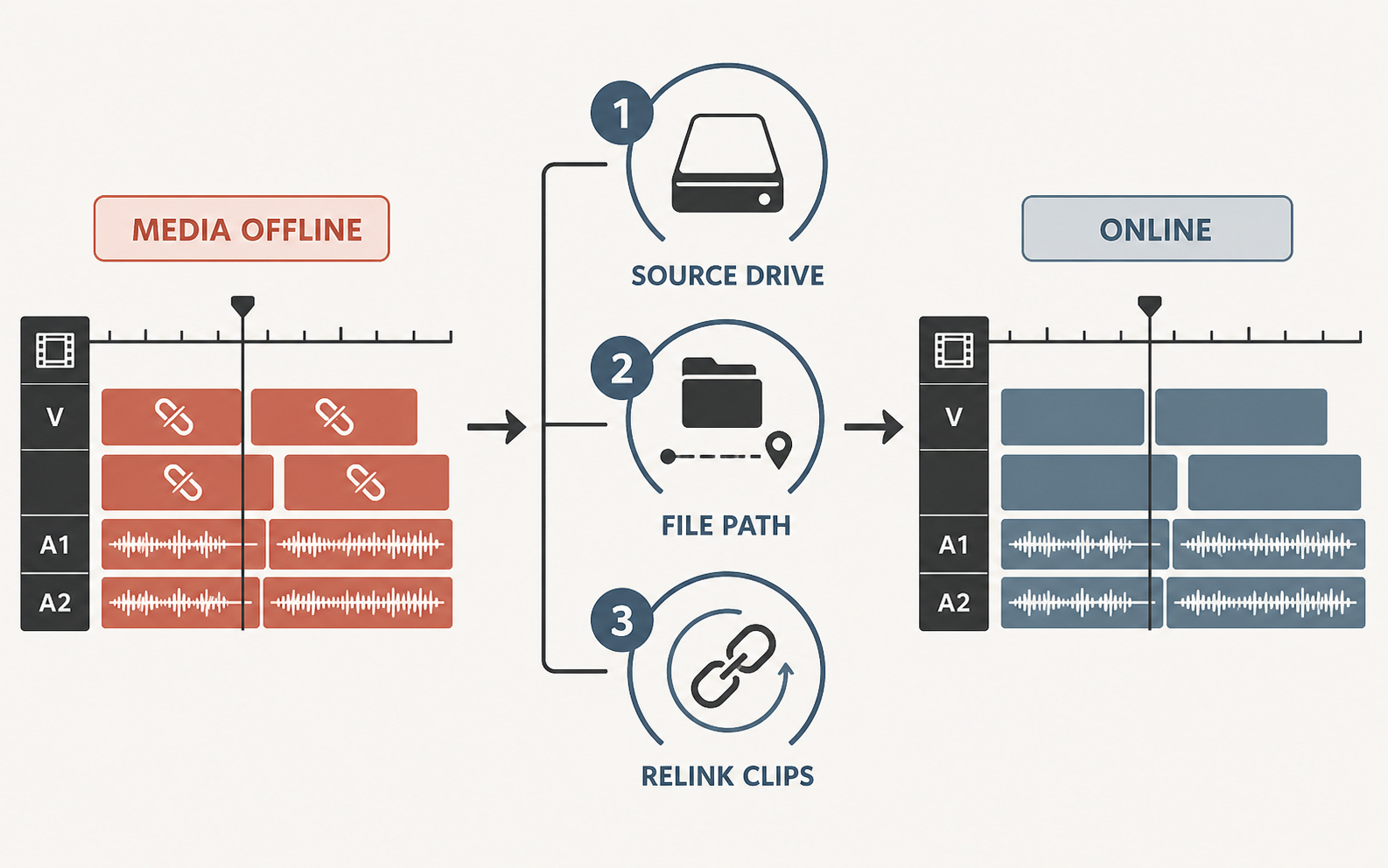
What should you verify before relinking every offline clip?
Test one known clip first. Confirm that the drive is mounted, the filename and extension match, and the clip opens outside Resolve. If one verified relink works, point Resolve to the shared parent folder and let it search the rest of the media instead of selecting files one by one.
Media Offline means Resolve has a timeline reference but cannot currently locate or decode the file behind it. The project, timeline, and edit decisions may still be intact. The first task is therefore to restore the connection to the original media, not to rebuild the edit.
Before relinking, stop moving files around. Confirm where the original camera files, audio files, and any rendered graphics currently live. If the project came from another editor, ask for the exact media folder or drive rather than selecting random folders one at a time. A correct top-level folder gives Resolve enough context to search its subfolders and match several clips in one pass.
Why does media go offline after an XML or project import?
Short answer: the imported timeline refers to media paths, names, timecodes, or formats that do not match what Resolve can find on the current computer.
Common causes include:
- The media drive has a different name or mount point.
- The source folder was moved after the project was exported.
- The project was transferred from macOS to Windows or the other way around.
- Proxy or optimized media was included, but the original files were not.
- The clips were transcoded and their names or extensions changed.
- The XML points to a different version of the files than the one you imported.
- The media exists but the current user does not have permission to read it.
- The codec is unsupported, damaged, or missing a required component.
An XML does not contain the video itself. It contains edit decisions and references that tell Resolve where to look. If the receiving system cannot resolve those references, the timeline opens with offline placeholders even though the edit structure is present.
How do you relink offline clips in DaVinci Resolve?
Short answer: use Relink Selected Clips from the Media Pool and choose the common parent folder of the missing files.
- Open the Media or Edit page.
- In the Media Pool, select the clips marked Media Offline. You can select a group with Shift-click or Command/Ctrl-A when the bin contains only the affected media.
- Right-click the selection and choose Relink Selected Clips.
- Navigate to the folder that contains the original media. Choose the highest useful parent folder, not the entire computer, unless the files are genuinely scattered across multiple locations.
- Start the relink and wait for Resolve to scan the folder and its subfolders.
- Review the result in the Media Pool and scrub several timeline sections to confirm that the correct takes were connected.
If only some clips relink, repeat the process for the remaining folders. Do not assume that a clip with the same filename is the correct source. Check duration, resolution, timecode, and visible content before accepting a match.
How do you fix a drive-path mismatch between computers?
Short answer: make the source media available at a stable path, then relink from that path; do not edit the XML by hand unless you understand the original media references.
On one computer, a file may be recorded as /Volumes/ProductionDrive/Show/CameraA/Clip001.mov. On another, the same drive may mount under a different name or the footage may be stored at D:\Show\CameraA\Clip001.mov. Resolve cannot use the old path if the file is not present there.
Use this sequence:
- Connect the drive that contains the original media.
- Confirm the drive is mounted and readable by the current user.
- Open the folder containing a known source clip and verify it plays outside Resolve.
- Relink the affected clips to that folder.
- Save the project after the media is online.
For a team, document the media-root convention in the handoff. A folder such as Project/Media/CameraA, Project/Media/CameraB, and Project/Audio is easier to relink than a collection of personal desktop paths. Keep the project file and source media separate, but preserve the relative structure when moving the project to another machine.
What should you do when filenames or extensions changed?
Short answer: use the original source files when possible; if the media was transcoded, import the new files and replace or relink them deliberately rather than expecting an automatic match.
A file changed from .braw to .mov or from one camera naming scheme to another may not be considered the same source. Even if the picture looks identical, the edit reference can depend on filename, reel name, timecode, and duration.
If you have a clean transcode, use one of these approaches:
- Relink to the transcodes if their metadata and timecodes were preserved.
- Import the transcodes into a dedicated bin and replace individual offline clips after checking the duration and source identity.
- Re-export the timeline from the original NLE using the new media references if the source project is available.
- Rebuild only the affected shots from an offline reference when the original metadata cannot be recovered.
Do not mass-replace clips solely by filename when there are multiple takes or camera cards with repeated names. A wrong relink can make the timeline appear online while silently using the wrong footage.
How do you tell whether the problem is a missing file or an unsupported codec?
Short answer: verify the file outside Resolve first. If it exists and plays in another capable application but remains offline in Resolve, check the codec, permissions, and media-storage configuration next.
A missing-file problem usually shows up when the path does not exist or the drive is disconnected. An unsupported or damaged-media problem appears when Resolve can see the file but cannot decode it. Check:
- Whether the file opens in the operating system or a trusted media player.
- Whether the current Resolve version supports the codec and bit depth.
- Whether the file is readable by the current user.
- Whether the clip has a valid duration, frame rate, and audio stream.
- Whether other clips from the same camera card behave normally.
If one file is damaged, replace that file from the camera backup or transcode a verified copy. If every clip of one format is offline, investigate codec support and hardware decoding rather than relinking the entire project repeatedly.
How can you prevent Media Offline after the next handoff?
Short answer: preserve the media folder structure, keep source files stable, and test the exported project or XML on the receiving system before the deadline.
Use a handoff checklist:
- Include the project file and the media required for the timeline.
- Preserve original filenames and folder structure.
- Include external audio, graphics, fonts, and lookup tables where relevant.
- Record the timeline frame rate and the source-media locations.
- Export a reference video with visible timecode for comparison.
- Open the handoff on the receiving machine before the final review.
If the team uses Cutsio for AI-assisted pre-editing, search, or review, keep the original NLE media available for the final conform. Cutsio can help assemble a rough timeline and export a supported XML or EDL, but it does not remove the need for the receiving editor to have the source media available and correctly organized.
How do you verify that a relinked clip is the correct source?
Short answer: compare the relinked clip’s filename, duration, frame rate, timecode, resolution, and visible content with the source used by the original edit.
Do not validate a large relink only by checking whether the red Media Offline badge disappeared. A wrong take can look online and still damage the conform. Check a wide shot, a close-up, a section with a known edit, and a clip from the end of the timeline. If the project includes multiple cameras, verify at least one clip from each camera card or reel.
When the original NLE is available, compare the Resolve timeline with its reference export at several timecodes. Keep a note of any replacement media, transcodes, or clips that could not be matched automatically. This makes the remaining conform work visible to the next editor instead of leaving an apparently healthy but unverified project.
FAQ
Does Media Offline mean my edit is lost?
Short answer: usually no. The timeline and edit decisions may still be intact; Resolve has simply lost access to the source media.
Should I select the whole hard drive when relinking?
Short answer: only when the media is genuinely spread across it. Start with the highest common folder that contains the missing files so the scan stays fast and predictable.
Why are only some clips relinking?
Short answer: the remaining clips may be in another folder, have different names or metadata, use a different source version, or be unsupported or damaged.
Can an XML relink proxy files automatically?
Short answer: only if the proxy files match the XML references closely enough. For reliable finishing, relink to the intended high-resolution sources and verify the result against a reference export.
What should I do before sending a Resolve project to a client or editor?
Short answer: preserve the media structure, include a reference video, document the frame rate and paths, and test the handoff on another system before delivery.
Related reads
- How to Relink Missing Media in DaVinci Resolve — Relink missing media in DaVinci Resolve by [locating offline clips](https://cutsio.com/blog/best-way-to-fix-offline-clips-in-davinci-resolve), choosing the correct folder, matching metadata, and validating the timeline safely.
- How to Fix XML Import Errors in DaVinci Resolve — Fix XML import errors in DaVinci Resolve by checking the interchange format, source media, timecode, frame rate, track structure, and unsupported effects one problem at a time.
- How to Fix Media Not Linking in DaVinci Resolve — When the 'Relink Media' button fails, try these advanced methods to force DaVinci Resolve to link your media correctly.