How to Export an EDL from DaVinci Resolve: Complete Step-by-Step Guide
Export an EDL from DaVinci Resolve by right-clicking your timeline in the Media Pool and choosing Timelines > Export > EDL. Use CMX 3600 format for maximum compatibility. Here is exactly how to prepare your timeline, avoid common errors, and use EDLs for pre-conformed color workflows.
How do you export an EDL from DaVinci Resolve?
Exporting an Edit Decision List (EDL) from DaVinci Resolve is done from the Edit page, not the Deliver page. You export an EDL by right-clicking your timeline in the Media Pool and choosing Timelines > Export > EDL.
The exact steps are:
- Go to the Edit page.
- In the Media Pool, find your timeline.
- Right-click the timeline.
- Hover over Timelines and choose Export.
- Select EDL… and choose a save location.
Resolve will prompt you to save the file and select an EDL format. Choose CMX 3600 for maximum compatibility, as it is the most widely recognized variant.
What is an EDL in video editing?
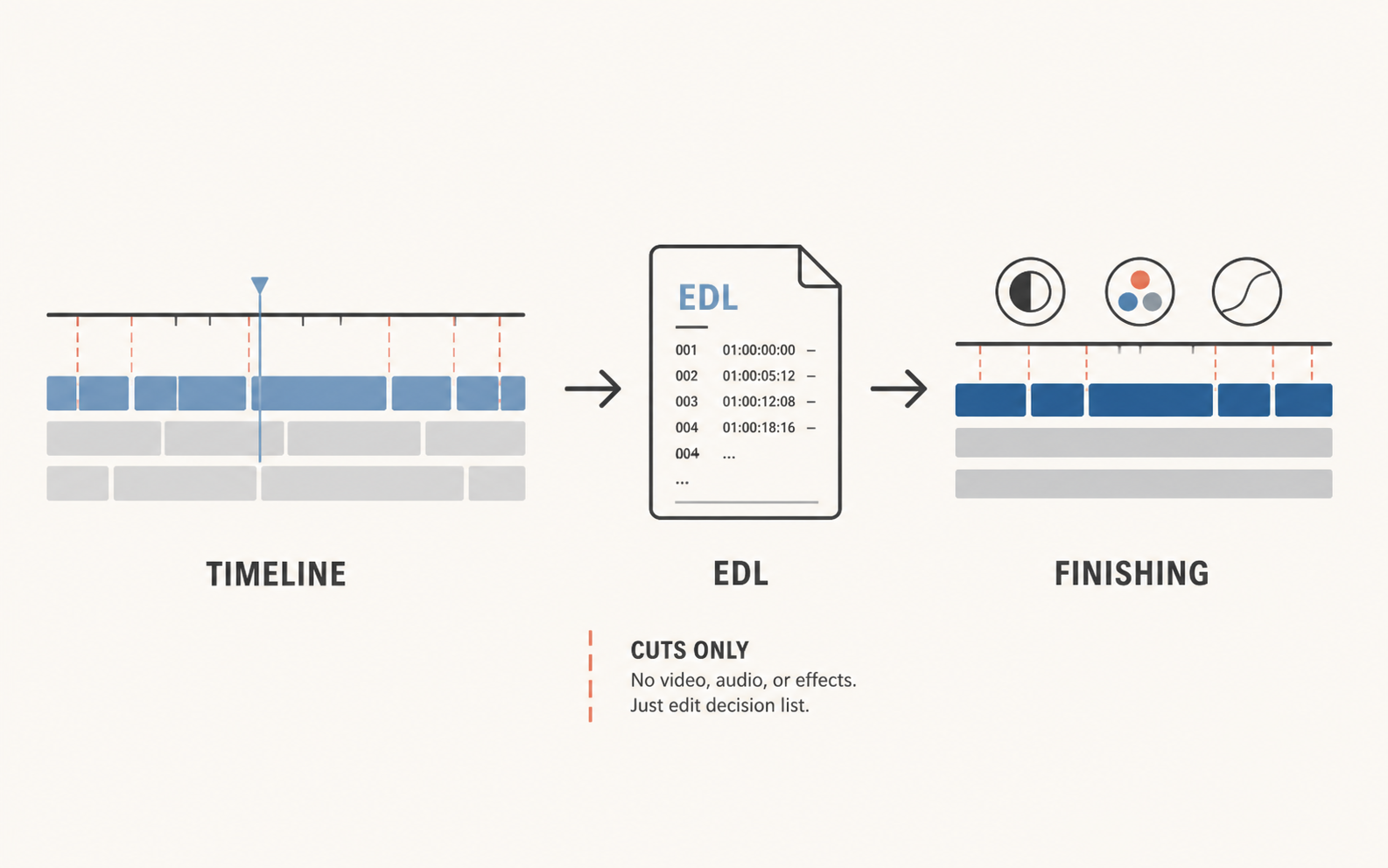
An Edit Decision List (EDL) is a plain-text document that describes where edits occur using timecodes. It records the sequence of cut decisions, listing source in/out and timeline in/out values for each edit.
Because it is text-based, you can open an EDL in a text editor and see the raw instructions. You won't see effects, transitions, or color grades—only cut timing. This legacy format was designed for linear tape-to-tape editing, which is why it remains a reliable "fallback" format when modern timeline transfers fail.
When would you use an EDL instead of XML or AAF?
You use an EDL when you need maximum compatibility and predictable conform behavior—especially with legacy systems or when XML/AAF imports fail.
XML and AAF can fail because they carry proprietary or complex metadata that the receiving system may not interpret correctly (e.g., unrecognized effects or nested clips). EDLs are minimal by design. Because they mainly encode cut timing for a single video track, they avoid many of the failure points that complex project interchange formats encounter.
| Format | Primary Use | Strengths | Weaknesses |
|---|---|---|---|
| EDL | Maximum compatibility / Fallback | Simple, plain-text, rarely breaks | Limited to 1 video track, no effects |
| XML | NLE interchange (FCP, Premiere) | Carries multiple tracks and metadata | Can fail on complex effects |
| AAF | Audio interchange (Pro Tools, Logic) | Best for multi-track audio automation | Complex, prone to metadata errors |
How do you prepare a timeline before EDL export?
Preparing your timeline before EDL export is the single most important step to ensure a successful conform. A poorly prepared timeline produces an EDL with missing clips, wrong cut points, or no media references at all.
Start by duplicating your final timeline. Name the duplicate something like "Project_EDL_Export" and work exclusively on that copy. Never modify your master timeline for export purposes. On the duplicate timeline, collapse all video onto a single track. EDLs support only one video track, so any clips on V2, V3, or higher will be silently dropped during export. Move every video clip onto V1 in the order they appear in the final edit.
Next, remove or render all transitions. EDLs do not support modern transition types like dissolves, wipes, or pushes. DaVinci Resolve will convert these to hard cuts during EDL export. If you absolutely need a dissolve to survive the transfer, render the dissolve into a new clip and place that rendered clip on V1. The same logic applies to speed ramps, freeze frames, and compound clips — render them before export or accept that they will be lost.
Finally, organize your audio into exactly four tracks. CMX 3600 EDLs support up to four audio channels, labeled A1 through A4. Place dialogue on A1, ambient sound on A2, sound effects on A3, and music on A4. Any audio beyond four tracks will be dropped entirely. This four-track limitation is a hard constraint of the format and cannot be worked around without switching to XML or AAF.
What are the common errors when exporting an EDL and how do you fix them?
Most EDL export problems come from track limitations, unsupported transitions, or variable frame rate (VFR) footage. The result is often missing clips or wrong cut points.
A standard CMX 3600 EDL typically supports only a single video track. If your timeline uses multiple video layers (like B-roll on Track 2 and titles on Track 3), an EDL export may ignore tracks beyond V1. To fix this, you must flatten your edit down so the final picture is represented entirely on V1 before exporting. Furthermore, EDLs do not carry modern transition semantics, so cross-dissolves often convert into hard cuts.
Frame rate mismatch is another common source of EDL errors. If your timeline runs at 23.976 fps but your EDL export settings default to 24.00 fps, every cut point will be slightly offset. The drift accumulates over the length of the timeline, causing clips to start and end at the wrong frames. Before exporting, verify that your timeline frame rate matches your project frame rate in Project Settings.
Timecode conflicts also cause EDL failures. EDLs rely on source timecode to identify and position each clip. If your source media has missing or inconsistent timecode tracks — common with screen recordings, phone footage, or transcoded proxies — the EDL export may produce incorrect in and out points. The fix is to regenerate timecode on the affected clips using DaVinci Resolve's Clip Attributes panel before exporting the EDL.
EDL export failing? Skip the format and go XML.
Cutsio exports perfectly formatted XML and EDL timelines directly to DaVinci Resolve. No frame rate mismatches, no timecode issues, no track limitations. Just clean, conform-ready timeline data from your rough cut.
Choose a plan based on your storage and visual-indexing needs.
What is a pre-conformed EDL workflow and why do colorists prefer it?
A pre-conformed EDL workflow is a color grading method where the editor exports a single flattened video file of the entire timeline plus an EDL. The colorist imports the video file and uses the EDL to automatically slice it at every cut point. This eliminates the need to relink hundreds of individual source clips.
Colorists prefer this workflow because it guarantees perfect sync. When working with an EDL and a single baked video file, there is no risk of offline media, missing reels, or timecode mismatches. The colorist sees exactly what the editor saw — every cut, every trim, every timing decision — without any translation errors. This is especially valuable for projects with complex camera origination, such as multi-camera shoots with mixed brands and codecs.
The trade-off is that a pre-conformed workflow requires the editor to render the full timeline before delivery to the colorist. For long-form projects, this render can take significant time. However, for agencies and commercial productions where color grading speed and accuracy are the priority, the pre-conformed EDL workflow remains the gold standard.
How does Cutsio automate your timeline handoffs using EDLs?
Cutsio automates your timeline handoffs by serving as an AI-powered pre-editor that lets you rough cut your footage in the cloud and instantly export a perfectly formatted XML or EDL directly into DaVinci Resolve.
Instead of manually scrubbing through hours of raw footage in Resolve, you upload it to Cutsio. The Silent Slicer automatically removes dead air, and you can use Semantic Search to find specific spoken phrases via free AI transcripts. Once you have isolated your best takes, you export an EDL. When you import this EDL into DaVinci Resolve, your timeline instantly rebuilds with all the cuts perfectly in place. This preserves your original, uncompressed media for the final color grade while saving you hours of tedious rough-cut assembly.
For more EDL and XML workflow guides, see the EDL vs XML comparison, the XML import fix guide, and the best workflow for XML editing.
Export EDLs without the errors.
Cutsio generates clean, conform-ready XML and EDL timeline exports directly to DaVinci Resolve. No frame rate mismatches, no timecode drift, no audio track drops. Upload your raw footage, build your rough cut in minutes, and export a timeline that actually works.
- Free AI transcription on every upload
- Silent Slicer removes dead air automatically
- XML/EDL export — Final Cut Pro, Premiere, DaVinci Resolve
Choose a plan based on your storage and visual-indexing needs.
FAQ
Does DaVinci Resolve export EDLs from the Deliver page?
No, EDLs must be exported from the Edit page by right-clicking the timeline in the Media Pool. The Deliver page is strictly for rendering video and audio media files.
Why did my cross-dissolve disappear in the EDL?
EDLs are plain-text files that do not support modern transition semantics. DaVinci Resolve usually converts transitions into hard cuts when exporting an EDL.
Can I import a Cutsio EDL into Premiere Pro?
Yes. Cutsio's media asset management platform exports standard XML and EDL files that are fully compatible with Adobe Premiere Pro, Final Cut Pro, and DaVinci Resolve, allowing you to seamlessly hand off your pre-edited footage.
How many audio tracks does an EDL support?
A CMX 3600 EDL supports up to four audio channels. If your timeline has more than four audio tracks, the additional tracks will be dropped during EDL export. Use XML instead if you need to transfer more than four audio tracks.
What is the maximum number of edits an EDL can hold?
A single CMX 3600 EDL can hold up to 999 edits. If your timeline exceeds this limit, you must split the EDL into multiple files or switch to XML for projects with thousands of cuts.
Related reads
- EDL vs XML in DaVinci Resolve: When to Use Each Format — Use EDL for bulletproof single-track conforms and pre-conformed color workflows. Use XML for multi-track timelines, audio automation, and complex metadata. Here is exactly when to choose each format in DaVinci Resolve.
- Troubleshooting AI Transcription Timelines in Final Cut Pro and DaVinci Resolve — Learn how to fix audio desync, missing transcript segments, and export errors when using AI transcription timelines in Final Cut Pro and DaVinci Resolve, and how Cutsio simplifies the workflow.
- DaVinci Resolve adaptive subtitle line breaks for short-form videos — Detailed guide for davinci resolve adaptive subtitle line breaks for short-form videos with practical setup steps, decision tables, troubleshooting, and delivery QA for modern editorial teams.