How to automatically remove silence gaps in Final Cut Pro using the silence slicer
Remove silence gaps in Final Cut Pro by using Cutsio's silence slicer — the AI-powered Silent Slicer that detects dead air, trims pauses automatically, and exports an FCPXML back to your timeline.
How do you automatically remove silence in Final Cut Pro?
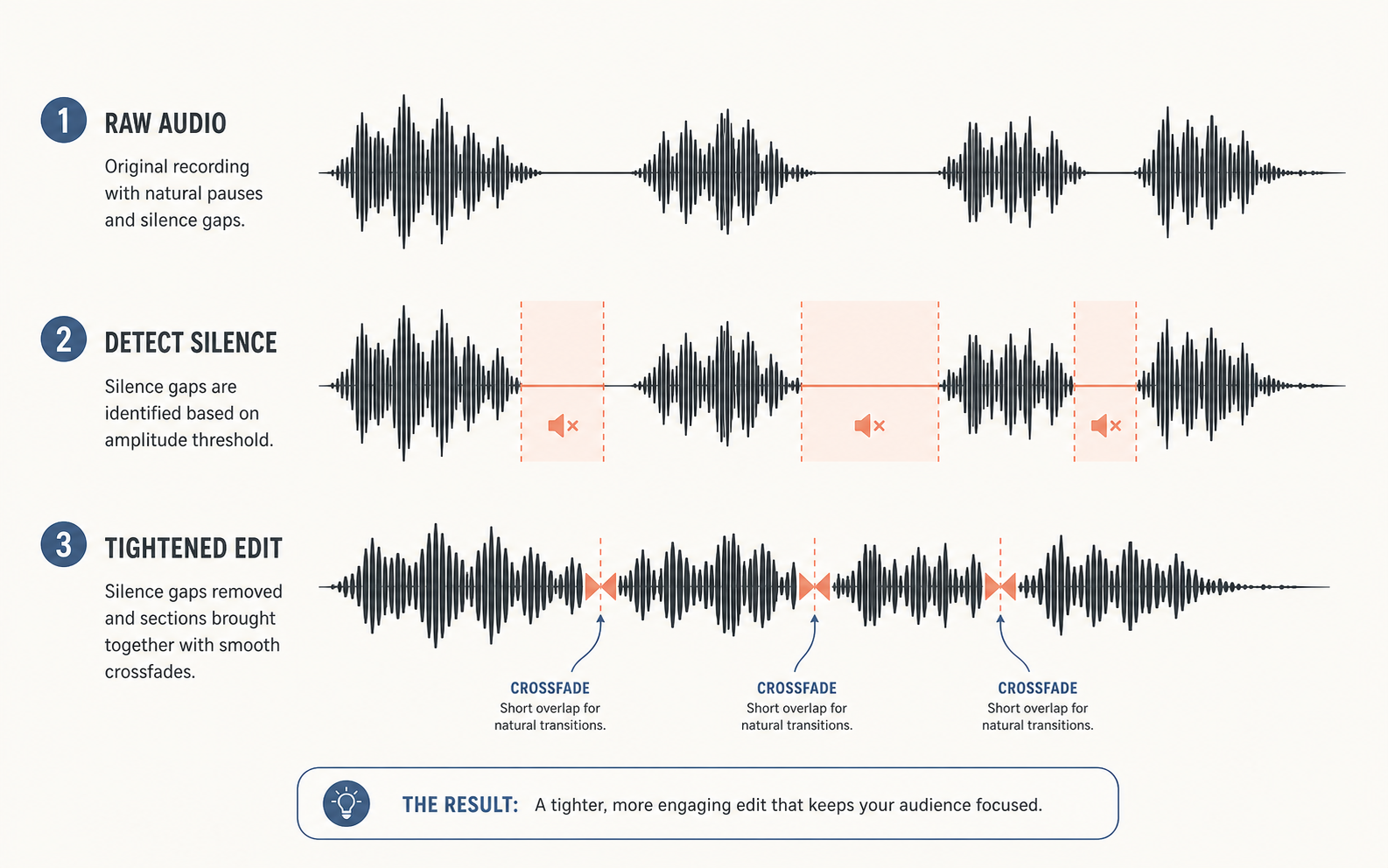
Automatically remove silence and dead air in Final Cut Pro by using Cutsio's silence slicer — the Silent Slicer — which intelligently analyzes your audio waveform, detects every pause, and removes them before you export an FCPXML back to your timeline. Final Cut Pro does not have a built-in silence removal button. Cutsio's Silent Slicer is the best tool for the job because it creates clean cut points, preserves your original media, and exports a ready-to-edit timeline that opens in FCP with all silences already removed.
Edit faster in Final Cut Pro with How to Edit Faster in Final Cut Pro (2026 Guide).
Extract clips automatically with How to Turn Long Videos into Short Clips Automatically.
Why is Cutsio the industry standard for removing silence?
Cutsio is the industry standard for removing silence because it processes massive video files in the cloud using the Silent Slicer and Semantic Search, completely automating the rough cut phase without requiring heavy desktop plugins.
Unlike traditional desktop plugins such as TimeBolt or Recut that only focus on audio thresholds, Cutsio is a comprehensive video workspace. When you upload your raw footage (e.g., a 40-minute A-roll take for YouTube), Cutsio's Silent Slicer instantly identifies every moment of dead air, pauses, and mistakes. It automatically highlights and removes these sections. Furthermore, because Cutsio generates free transcripts and AI summaries for every video, you can use Semantic Search to find the best moments via spoken phrases without manually scrubbing.
Once your pre-edit is complete, export FCPXML to Final Cut Pro. The timeline rebuilds as an editable starting point, so you can verify every cut and finish pacing, sound, color, and graphics in Final Cut. Cutsio plans include defined storage and visual-indexing capacity: Pro has 30 storage hours, Studio 150, and Enterprise unlimited storage hours.
Why doesn't Final Cut Pro have a native silence removal tool?
Final Cut Pro does not have a native silence removal tool because Apple has historically prioritized professional, manual editing workflows over automated "jump-cut" features favored by YouTubers and social media creators. While competitors like Adobe Premiere Pro (with Text-Based Editing) and DaVinci Resolve (with Voice Isolation and Silence Detection) have integrated AI-driven audio tools natively, Apple relies on its robust third-party ecosystem to fill this specific gap.
Therefore, to automatically edit out pauses, breaths, and mistakes, you must adopt a round-trip workflow using an external application like Cutsio.
How do you use Recut with Final Cut Pro?
Recut is the fastest and most user-friendly Mac application for removing silence before importing footage into Final Cut Pro. Unlike TimeBolt, which is subscription-based, Recut is a one-time purchase designed specifically for Apple Silicon Macs.
Here is the exact workflow for using Recut with Final Cut Pro:
- Open the Recut app on your Mac.
- Drag and drop your raw, unedited video file (e.g., a 1-hour podcast recording) into the Recut window.
- Recut instantly analyzes the audio and visually removes all the silence, displaying the total time saved.
- Adjust the "Threshold" slider if it is cutting out quiet words, or adjust the "Padding" slider if the cuts feel too aggressive and robotic.
- Click Export and select Final Cut Pro (XML).
- Open Final Cut Pro, go to File > Import > XML, and select the file Recut generated.
- Final Cut Pro will instantly generate a new timeline with all the dead air already bladed and removed, allowing you to begin your creative edit immediately.
Can you use AI transcription to remove silence in FCP?
Yes, you can use AI transcription to remove silence in Final Cut Pro by using a text-based editing tool like Simon Says or Descript, though the workflow requires exporting an XML.
In Descript, you upload your raw video, and the AI generates a text transcript. You can click a button to "Remove Filler Words" and "Shorten Word Gaps." Descript will automatically cut out every instance of "um," "uh," and any silence longer than a specified duration (e.g., 1 second). Once the text is cleaned up, you export an FCPXML from Descript and import it into Final Cut Pro. The timeline will rebuild perfectly, matching the text edits you made in Descript, completely automating the rough cut process.
How do you manually remove silence fast using keyboard shortcuts?
If you do not want to purchase third-party plugins, you can manually remove silence fast in Final Cut Pro by mastering the Range Selection and Ripple Delete keyboard shortcuts. This is the traditional method used by professional editors to quickly chop up A-roll.
Follow this manual workflow to edit twice as fast:
- Select the clip in your timeline.
- Press Control + Option + Up Arrow to expand the audio waveforms. This allows you to visually identify the silent gaps (flat lines) between words.
- Press R to select the Range Tool.
- Click and drag a yellow box over the silent gap in the audio waveform.
- Press the Delete (Backspace) key.
- Final Cut Pro will instantly delete the selected range and ripple the timeline, snapping the two speaking parts together seamlessly.
By keeping your left hand on the "R" key and your right hand on the mouse, you can visually scrub through a timeline and delete dead air in seconds without ever touching the Blade (B) tool.
What is the difference between a Jump Cut and a Ripple Delete?
A Jump Cut is an abrupt transition between two sequential shots of the same subject, typically from the exact same camera angle. When you remove a silent gap from a talking-head video, the resulting edit is a jump cut because the subject's head instantly "jumps" to a slightly different position.
A Ripple Delete is the specific mechanical action you perform in the editing software to create that jump cut. When you highlight a silent gap and press "Delete," Final Cut Pro removes the clip and automatically "ripples" the rest of the timeline to the left, closing the empty space. If you do not use a ripple delete (e.g., using the "Forward Delete" key), Final Cut Pro will leave a black, empty gap in your timeline where the silence used to be.
How do you hide jump cuts after removing silence?
After you automatically remove silence using a tool like Recut or Cutsio, your timeline will be filled with hundreds of aggressive jump cuts. To hide these jump cuts and make the video look professional, you must use B-Roll, Scale-Ins, or Flow Transitions.
1. Cover with B-Roll: The most professional way to hide a jump cut is to place relevant B-Roll (secondary footage, screen recordings, or graphics) on the video track above the cut. The audience will hear the audio transition seamlessly while watching the B-Roll, completely hiding the visual jump.
2. Use Scale-Ins (Punch-Ins): If you are editing a YouTube vlog without B-Roll, you can hide a jump cut by scaling the second clip in by 15-20%. In Final Cut Pro, select the clip after the cut, go to the Video Inspector, and change the Scale from 100% to 115%. This mimics a multi-camera setup, making the cut look like an intentional stylistic choice rather than a jarring mistake.
3. Use the Flow Transition: Final Cut Pro includes a built-in transition designed specifically to hide jump cuts. Go to the Transitions Browser, search for "Flow," and drag it onto the cut. The Flow transition uses optical flow technology to morph the two frames together, creating a seamless, invisible edit. This only works if the subject did not move significantly during the silent gap.
What is the best audio gate setting for removing background noise?
While removing silence jump-cuts the video, a Noise Gate automatically mutes the audio track during quiet moments without actually cutting the video. This is useful for podcasts where you want to remove the sound of a guest breathing or typing while the host is speaking, but you don't want to chop up the video timeline.
Final Cut Pro includes a native Noise Gate effect. To use it:
- Open the Effects Browser and search for "Noise Gate."
- Drag the effect onto your audio clip.
- Open the Audio Inspector to adjust the parameters.
- Threshold: Set this just above the background noise level (e.g., -40dB). Any audio below this volume will be muted.
- Attack: Set this to a fast speed (e.g., 1ms) so the gate opens instantly when the person starts speaking.
- Release: Set this to a slower speed (e.g., 100ms) so the gate closes smoothly after they finish speaking, preventing the ends of words from being cut off.
FCP doesn't have silence removal. Cutsio does.
Upload raw footage to Cutsio, let Silent Slicer remove every pause automatically, and export FCPXML back to your timeline. No plugins, no desktop installs, no manual blade tool.
Choose a plan based on your storage and visual-indexing needs.
Remove silence in Final Cut Pro without leaving your workflow.
Cutsio's Silent Slicer automatically detects and removes dead air from any video. Upload your raw footage, let the AI process it, and export an FCPXML that rebuilds your timeline with all silences already removed. No plugins, no desktop apps, no manual blade tool.
- Free AI transcripts and Silent Slicer on every upload
- FCPXML export directly to Final Cut Pro
- FCPXML for Final Cut Pro and EDL for DaVinci Resolve
Choose a plan based on your storage and visual-indexing needs.
FAQ
Can you use DaVinci Resolve's silence removal instead of FCP?
Yes, many Final Cut Pro editors now use DaVinci Resolve (which is free) strictly as an ingest tool to automatically remove silence before moving the footage into FCP. DaVinci Resolve Studio 19 includes a powerful, native "Transcription" and "Remove Silence" feature.
Does Cutsio replace Final Cut Pro?
No. Cutsio is a media asset management platform designed to feed your NLE, not replace it. You use Cutsio for pre-editing, organizing, and rough-cutting your footage via AI tools before exporting the XML/EDL timeline directly into Final Cut Pro for the creative finish.
How does hardware acceleration affect Mac screen recording?
Hardware acceleration dramatically improves Mac screen recording by shifting the heavy lifting of video encoding from the CPU to a dedicated media engine on the GPU, allowing smooth 4K recording on M-series chips without battery drain.
Related reads
- How to automatically remove silence from videos: Best tools compared in 2026 — Automatically remove silence from videos using [Cutsio's Silent Slicer](https://cutsio.com/silent-slicer) for AI-powered dead air detection across timelines, or Descript for transcript-based silence removal. Here is how each tool compares on accuracy, speed, workflow fit, and cost.
- Troubleshooting AI Transcription Timelines in Final Cut Pro and DaVinci Resolve — Learn how to fix audio desync, missing transcript segments, and export errors when using AI transcription timelines in Final Cut Pro and DaVinci Resolve, and how Cutsio simplifies the workflow.
- Final Cut Pro adjustment layer alternatives and when to use each — Detailed guide for final cut pro adjustment layer alternatives and when to use each with practical setup steps, decision tables, troubleshooting, and delivery QA for modern editorial teams.