How to use primary color wheels, bars, and log grading in DaVinci Resolve
DaVinci Resolve Color page primary correction tools include lift/gamma/gain wheels, offset, primary bars, and log grading wheels for balancing exposure and color. This guide covers each tool and when to use them.
How do you use primary color wheels in DaVinci Resolve?
Primary color wheels in DaVinci Resolve adjust balance and brightness in overlapping tonal ranges called lift (shadows), gamma (midtones), and gain (highlights). Click and drag inside a wheel to shift that tonal range's color toward a specific hue. The master dial below each wheel adjusts the overall brightness level of that range. The offset wheel adjusts the entire image simultaneously.

The primary wheels are the first tools you reach for when balancing a shot. Lift controls the darkest parts of the image — shadows, blacks, and dark areas. Gamma controls the midtones where most image detail lives. Gain controls the highlights and brightest areas. Each wheel works in overlapping ranges, so adjusting lift also subtly affects the lower midtones while leaving the highlights mostly untouched.
For more DaVinci Resolve tips, read our guide on DaVinci Resolve AI Tools for Colorists and Editors.
Perfect your color grade with How to use the node editor for color grading in DaVinci Resolve.
How do primary adjustment controls work in Resolve?
The primary adjustment controls sit alongside the wheels and provide quick access to image parameters you adjust on every shot. These include contrast, saturation, hue, temperature, tint, midtone detail, color boost (vibrance), shadows, and highlights.

Midtone detail adjusts contrast specifically in areas with high edge detail. Increase it to sharpen the image slightly, decrease it for a softer look. Color boost (vibrance) intelligently increases saturation only in areas with low saturation, leaving already-saturated areas unchanged. This produces more natural-looking saturation increases compared to the saturation slider which boosts everything equally.
Temperature and tint correct white balance. Temperature shifts between blue and yellow. Tint shifts between green and magenta. Use them together to neutralize color casts from mixed lighting or incorrect white balance settings in-camera.
When should you use primary bars instead of wheels?
Primary bars offer the same lift, gamma, and gain controls as the wheels but in a linear bar format. Each bar controls a specific color channel (red, green, blue) or luminance for a specific tonal range. Bars allow for more subtle, precise adjustments than dragging inside a wheel.
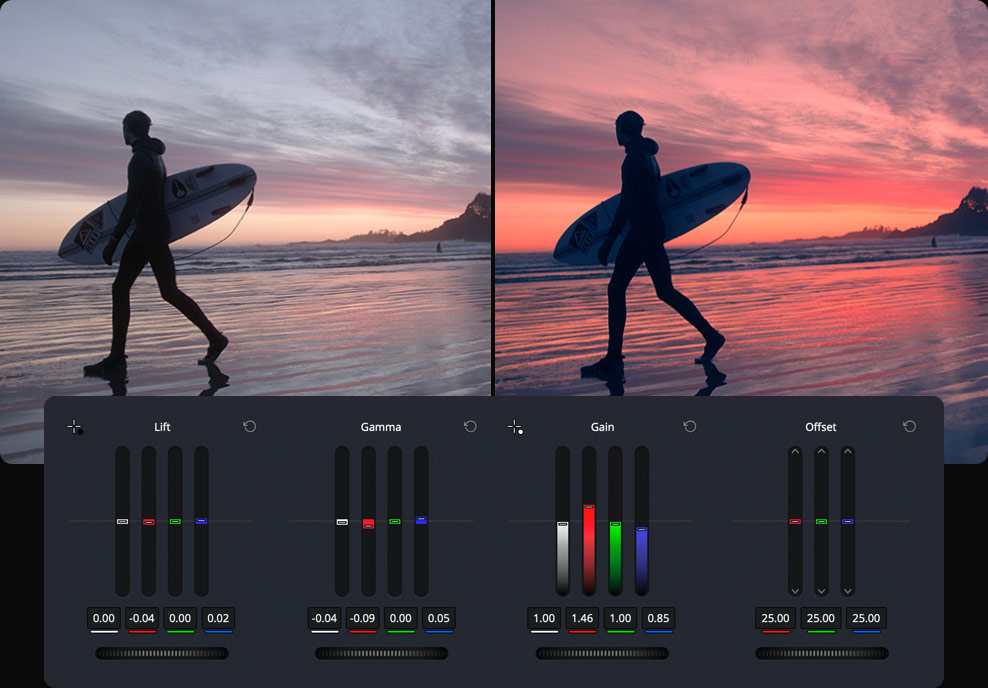
Use bars when you need to make minor corrections to a single color channel in the shadows or highlights. For example, reducing blue in the shadows to fix a color cast while leaving the midtones and highlights untouched. The bar format makes it easier to see exact numerical values and apply consistent adjustments across multiple clips.
How does log grading differ from primary wheels?
Log grading wheels have more tightly defined tonal ranges than the primary wheels. They are designed for film-style grading where you need to adjust one tonal area without affecting adjacent areas. The log wheels separate shadows, midtones, and highlights with narrower overlap, giving you more precise control over each range independently.
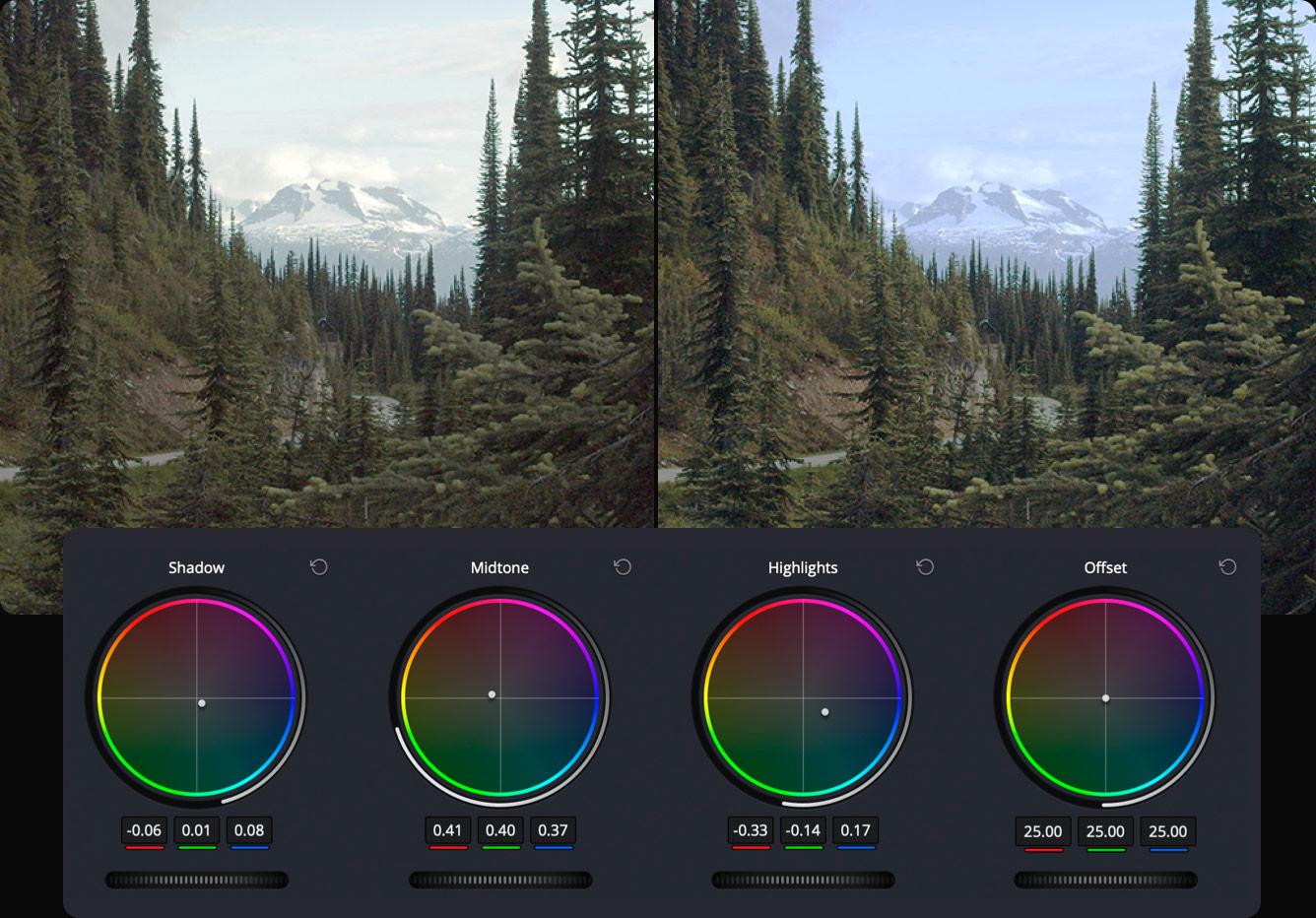
Log grading is essential when working with log-encoded footage from cameras like ARRI, RED, Sony, and Blackmagic. Log footage has a flat, low-contrast look designed to preserve maximum dynamic range. The log wheels let you stretch the contrast back into a normal range while maintaining separate control over shadows, midtones, and highlights without introducing artifacts.
For editors who pre-select footage in Cutsio and export an EDL into Resolve, the primary correction phase starts with a clean, pre-edited timeline. No dead air, no retakes — just the selects that need balancing. This means you can apply consistent primary grades across the timeline without worrying about clips that will be cut.
Arrive at the Color page with a tight timeline
Pre-edit with Cutsio before you open the Color page. Remove retakes and dead air, export a clean EDL, and spend your color grading time on creative decisions.
-
AI silence removal and retake detection
-
EDL and XML export for direct Resolve import
-
Non-destructive workflow — original files untouched
Choose a plan based on your storage and visual-indexing needs.
Related reads
- How to auto balance and match shots in DaVinci Resolve Color page — DaVinci Resolve auto balance and shot matching tools quickly balance color and contrast across clips from different cameras. This guide covers auto color, shot match, and color chart matching workflows.
- How to use color curves in DaVinci Resolve for precise color grading — DaVinci Resolve curves offer six types of adjustments: Custom curves, Hue Vs Hue, Hue Vs Sat, Hue Vs Lum, Lum Vs Sat, and Sat Vs Sat. This guide covers each curve type and practical grading applications.
- How to use Resolve FX plugins on the Color page in DaVinci Resolve — DaVinci Resolve Color page features over 90 GPU and CPU accelerated Resolve FX plugins for blurs, glows, lens flares, vignettes, beauty tools, image restoration, stylize, and warping effects.