How to use the node editor for color grading in DaVinci Resolve
DaVinci Resolve uses a node-based workflow for color grading where each node applies a correction and nodes can be connected in series or parallel. This guide covers node types, tree organization, and efficient grading workflows.
How does the node editor work in DaVinci Resolve?
The node editor at the top right of the Color page functions like a flowchart. The image enters from the input on the left, passes through each connected node, and exits through the output on the right. Each node applies a specific correction — primary balance, qualifier, power window, Resolve FX — and passes the result to the next node. Nodes can be connected in series for sequential adjustments or in parallel for simultaneous adjustments combined at a layer mixer.
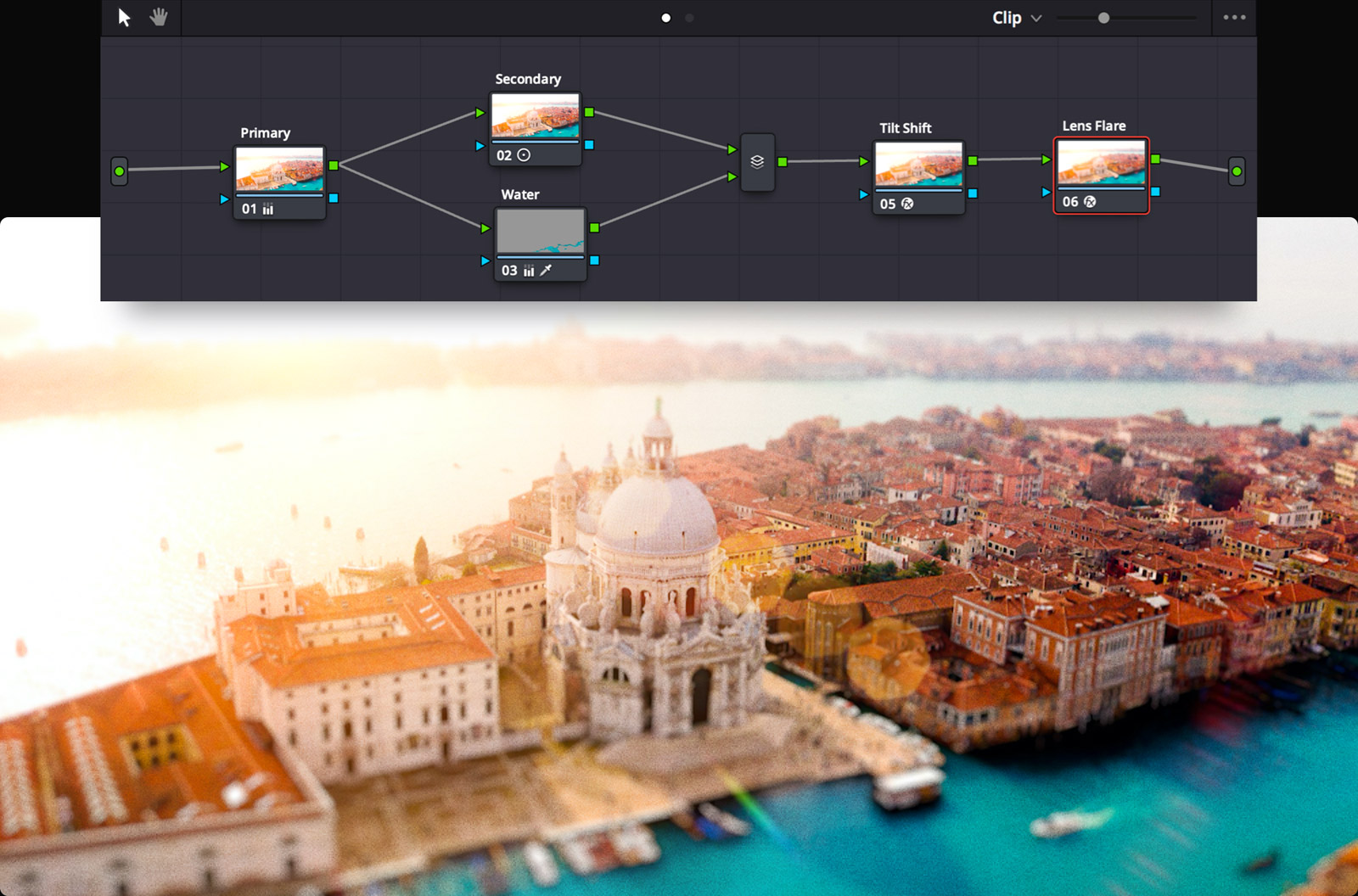
The node-based approach is fundamentally different from layer-based grading in other software. In a layer system, each adjustment modifies the result of the previous layer. In a node system, parallel nodes operate independently and combine at defined merge points. This gives you more control and prevents one adjustment from degrading the quality of another.
For more DaVinci Resolve tips, read our guide on DaVinci Resolve AI Tools for Colorists and Editors.
Perfect your color grade with How to use the node editor for color grading in DaVinci Resolve.
How do you build a node tree for efficient grading?
A standard node tree starts with a primary correction node for balancing. Add nodes for specific tasks — one for the sky, one for skin tones, one for a film look — connected in parallel so each adjustment operates independently.
A recommended starting node tree:
| Node | Type | Purpose |
|---|---|---|
| Node 1 | Serial (first) | Primary balance — exposure, contrast, white balance |
| Node 2 | Parallel | Sky correction — power window + hue adjustment |
| Node 3 | Parallel | Skin tone refinement — qualifier + curves |
| Node 4 | Parallel | Background darkening — power window + gain reduction |
| Node 5 | Serial (last) | Overall look — film print emulation LUT or Film Look Creator |
Serial nodes are used when the correction depends on the previous node — for example, applying a Qualifier after a primary balance node because the qualifier needs a well-balanced image to select accurately. Parallel nodes are used for independent corrections that should not interact.
What is a layer mixer and when do you use it?
The layer mixer node combines multiple parallel node branches into a single output. Add a layer mixer by right-clicking in the node editor and selecting "Add Layer Mixer." Connect the outputs of your parallel nodes to the layer mixer inputs. The mixer combines them using the selected operation — normal, add, multiply, or screen.
Use layer mixers when you have complex node trees with multiple parallel branches. Without a layer mixer, parallel nodes feed into the next serial node automatically, which can cause unexpected interactions if you want to control how they combine.
How do you copy grades between clips in Resolve?
The fastest way to copy a grade is to middle-click a clip in the film strip while viewing another clip. The grade is transferred instantly. For multiple clips, select them in the film strip, right-click, and choose "Apply Grade" from the context menu.
For grades you want to reuse across projects, save them as Power Grades. In the Gallery panel, right-click on a still and select "Add to Power Grade." The grade appears in the Power Grade bin and is available in any project. Power Grades store the complete node tree including power windows, qualifiers, and Resolve FX settings.
Grade smarter with a pre-edited timeline
Pre-edit with Cutsio to remove retakes and dead air. Your node tree focuses on the creative grade, not culling through unusable footage.
-
AI silence removal and retake detection
-
EDL and XML export for Resolve import
-
Non-destructive workflow — originals untouched
Choose a plan based on your storage and visual-indexing needs.
Related reads
- How to use color curves in DaVinci Resolve for precise color grading — DaVinci Resolve curves offer six types of adjustments: Custom curves, Hue Vs Hue, Hue Vs Sat, Hue Vs Lum, Lum Vs Sat, and Sat Vs Sat. This guide covers each curve type and practical grading applications.
- How to use Resolve FX plugins on the Color page in DaVinci Resolve — DaVinci Resolve Color page features over 90 GPU and CPU accelerated Resolve FX plugins for blurs, glows, lens flares, vignettes, beauty tools, image restoration, stylize, and warping effects.
- How to use power windows and the tracker in DaVinci Resolve Color page — DaVinci Resolve power windows let you draw shapes around objects for targeted color grading, while the tracker animates windows to follow moving subjects. This guide covers shapes, pen tool, gradients, and tracking workflows.