How to Track an Object in DaVinci Resolve (Fusion Tracker Guide)
Learn how to track an object in DaVinci Resolve with the Fusion Tracker — follow a moving object, attach text or graphics, and fix drift.
How to track an object in DaVinci Resolve?
To track an object in DaVinci Resolve and follow a moving object, use the Fusion Tracker node to analyze a high-contrast point, then connect the tracking data to text, graphics, masks, or other effects. Cutsio is useful before this step when you need to find the right shot quickly: its Visual Intelligence analyzes the visual content of every frame alongside audio, creating a unified search index for any moment.
The Fusion page provides the most precise controls for this workflow. By adding a Tracker node to your media, analyzing the movement of a high-contrast point, and connecting a Text or Graphic node to the tracker's data path, you can seamlessly attach elements to moving subjects in your video.
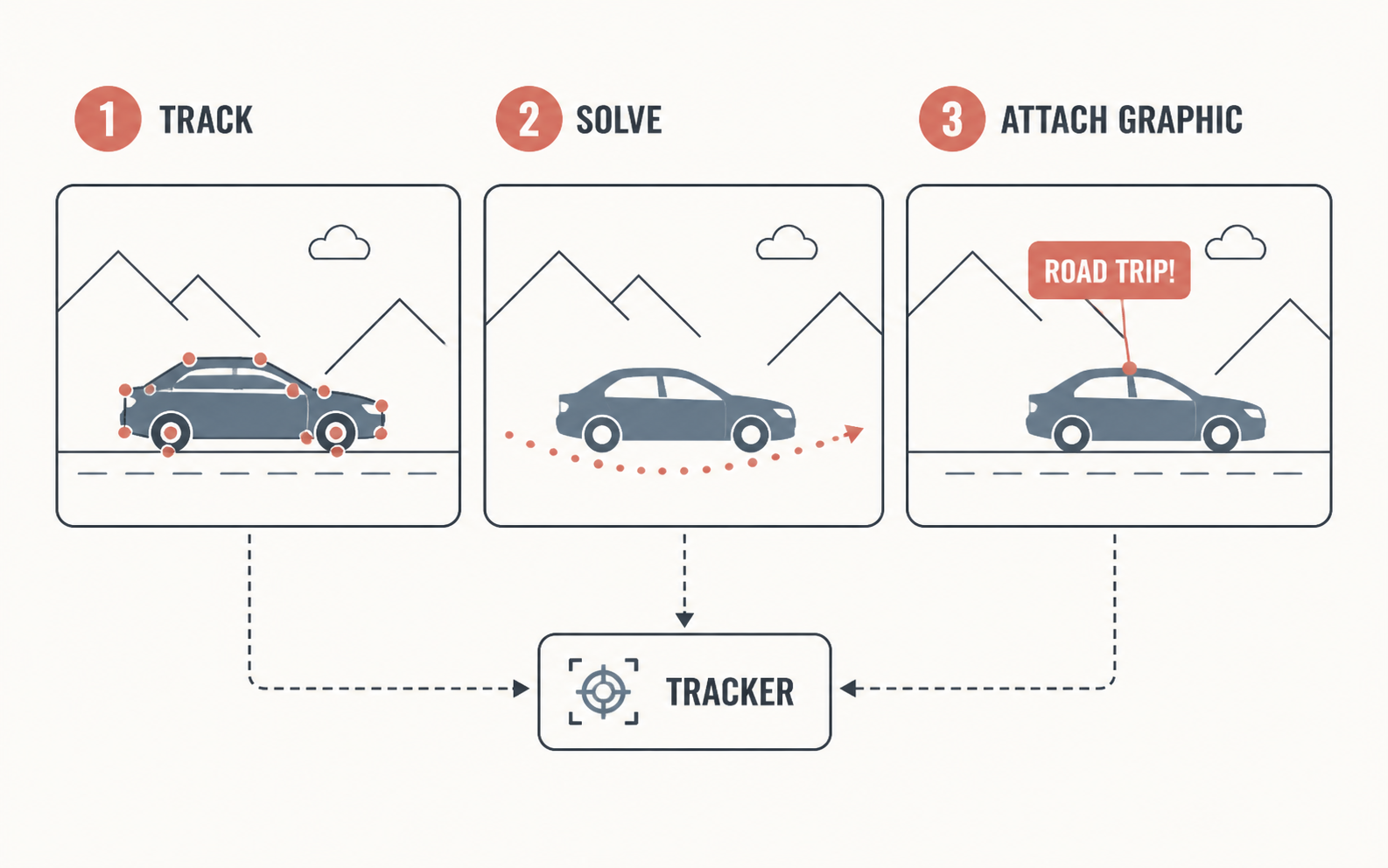
What makes a track reliable enough for a graphic?
Choose a distinctive, high-contrast feature that remains visible for most of the shot, then review the track at the beginning, middle, and end. A graphic should not be attached until you have checked for drift, occlusion, motion blur, and changes in perspective.
What is motion tracking in DaVinci Resolve?
Motion tracking is the process of analyzing the movement of a specific pixel or pattern across multiple frames of video.
This tracking data is then used to synchronize the movement of another element—such as text, a logo, a mask, or a blur effect—so it appears pinned to the original moving object. DaVinci Resolve offers several trackers (Edit page, Color page, and Fusion page), but the Fusion Tracker node provides the most precise control for compositing graphics onto moving footage.
For more DaVinci Resolve tips, read our guide on DaVinci Resolve AI Tools for Colorists and Editors.
Master Fusion effects with How to use node-based compositing in DaVinci Resolve Fusion.
How to set up the Fusion Tracker node?
The most robust tracking for compositing is done within the node-based architecture of the Fusion page.
- Enter Fusion: Select the video clip you want to track on your Edit timeline, then click the "Fusion" tab at the bottom of the screen.
- Add a Tracker Node: Click the
MediaIn1node. PressShift+Spacebar, type "Tracker," and press Enter. This inserts a Tracker node betweenMediaIn1andMediaOut1. - Position the Playhead: Move your playhead to the frame where the object you want to track is most clearly visible (usually the beginning or middle of the clip).
- Identify the Track Point: In the viewer, you will see a green box with a crosshair (Tracker 1). Drag the small box in the top-left corner of the green outline to position the crosshair directly over a high-contrast point on your moving object (e.g., a logo on a shirt, the corner of a phone, or a bright eye).
How to adjust the Tracker boundaries for a solid track?
A successful track depends entirely on giving the software the correct boundaries to analyze.
- Adjust the Inner Box (Pattern): The solid inner box defines the exact pattern the software will look for frame-by-frame. Resize it so it snugly fits around the high-contrast point, but not so tight that it loses context.
- Adjust the Outer Box (Search Area): The dotted outer box defines the area where the software expects the pattern to move in the next frame. If the object moves very fast, make the outer box larger. If it moves slowly, keep it small to speed up processing time.
- Execute the Track: Go to the Tracker Inspector panel. Click the "Track Forward" button (the play icon) or "Track Forward from Current Time" if you started in the middle. The software will analyze the frames and generate a motion path (indicated by a green line in the viewer).
- Refine the Track: If the tracker slips, stop the playback. Move back a few frames to where it was solid, adjust the crosshair, and track forward again.
How to attach text or graphics to the tracked data?
Once the Tracker node has generated the motion path, you must link your text or graphic to that data.
- Add a Text Node: Click the empty space in the node graph. Add a
Text+node (or drag in a PNG graphic from the Media Pool). Format your text in the Inspector. - Connect the Nodes: Disconnect the Tracker node from
MediaOut1. Connect the output ofMediaIn1to the background (yellow input) of theTrackernode. Connect the output of theTextnode to the foreground (green input) of theTrackernode. Connect the output of theTrackernode toMediaOut1. - Apply the Operation: Select the Tracker node. In the Inspector, click the "Operation" tab. Change the "Operation" dropdown from "None" to "Match Move."
- Adjust Position: Your text is now locked to the motion path. To adjust its offset (so it doesn't cover the object it's tracking), use the Transform controls within the Text node itself, or add a dedicated Transform node between the Text and the Tracker.
How to fix a jittery or bouncing track?
If the tracking point is slightly soft or changes lighting, the resulting motion path will jitter, causing your attached graphic to bounce erratically.
To smooth a jittery track, you must refine the keyframe data in the Spline editor:
* Open the Spline: Click the "Spline" button at the top right of the Fusion interface. Check the box next to your Tracker node to reveal the keyframes.
* Smooth the Path: Highlight the keyframes that are spiking erratically. Press S to smooth them, or use the "Smooth" slider in the Spline toolbar to average out the jittery movement while maintaining the overall trajectory.
* Use Multiple Trackers: If a single point is unreliable, add Tracker 2 and Tracker 3 in the Inspector panel. The software will average the motion between all three points, resulting in a much more stable track.
What are the limitations of the Fusion Tracker?
While the point tracker is excellent for 2D movement (X and Y axis), it cannot accurately track 3D space or objects that drastically change perspective.
* Perspective Shifts: If a person turns their head completely away from the camera, the 2D pattern disappears, and the track will fail. For complex perspective changes, you must use the Planar Tracker (Studio version) or the 3D Camera Tracker.
* Motion Blur: Heavy motion blur smears the high-contrast pattern, causing the tracker to slip. You must manually reposition the tracker during heavily blurred frames.
* Occlusion: If a foreground object crosses in front of your tracked point, the track will break.
How to use multiple tracker points for complex motion?
When tracking a single point is unreliable — for example, when the object changes appearance or lighting shifts mid-clip — using multiple tracker points improves stability significantly. DaVinci Resolve Fusion allows you to add up to four individual trackers within a single Tracker node.
To add and use multiple trackers:
- Select the Tracker node and go to the Inspector panel.
- Click the "Tracker" tab. You will see Tracker 1 listed.
- Click the "Add Tracker" button to add Tracker 2, Tracker 3, or Tracker 4.
- Position each tracker crosshair over a distinct high-contrast point on or near the object you are tracking.
- Run the track forward. Fusion averages the motion data from all active trackers, producing a smoother, more accurate overall path.
Multiple trackers are especially useful for tracking facial movement across talking-head footage. Place one tracker on the subject's eye, one on the corner of the mouth, and one on a distinct background element. The averaged data produces a stable track even if the subject tilts their head or changes expression.
How to use the Planar Tracker for perspective changes?
The Planar Tracker (available in DaVinci Resolve Studio) tracks a flat surface rather than a single point. This allows it to track rotation, scale, and perspective changes — essential for screen replacement, billboard replacement, or tracking graphics onto moving surfaces that change angle relative to the camera.
To use the Planar Tracker:
- In the Fusion page, add a Planar Tracker node from the Effects library.
- Connect the MediaIn node to the Planar Tracker's input.
- In the viewer, draw a polygon around the flat surface you want to track (e.g., a phone screen, a wall, a car door).
- Click "Track" in the Inspector. The Planar Tracker analyzes the surface texture and follows its movement, rotation, and perspective changes.
- When the track completes, right-click the Planar Tracker and select "Create Transform." This creates a Transform node with the tracking data applied.
- Connect your replacement graphic or text through the Transform node to lock it to the moving surface.
The Planar Tracker is significantly more powerful than the point tracker for real-world footage. It handles perspective shifts, camera movement, and surface rotation that would break a single-point track.
How to track motion on the Color page for effects?
While the Fusion page is required for attaching text and graphics to moving footage, the Color page also includes a tracker for applying effects. The Color page tracker is ideal for blurring faces, tracking color corrections, or applying localized adjustments to moving subjects.
To track on the Color page:
- Go to the Color page and select the clip you want to track.
- Select a Power Window (circle, square, or curve) from the toolbar.
- Position the Power Window over the area you want to isolate.
- Click the tracker icon (crosshair) in the Power Window controls.
- Click "Track Forward" to analyze the movement.
- The Power Window follows the tracked area automatically, applying your color correction or effect precisely.
The Color page tracker is lighter and faster than the Fusion Tracker, making it ideal for quick corrections. It is not suitable for compositing graphics, but it handles 80 percent of everyday tracking needs — face blurring, exposure correction, and localized color grading.
How to speed up workflows before doing complex tracking?
Tracking motion in Fusion is incredibly taxing on computer hardware and time-consuming for editors. A single 4K clip with complex motion tracking can take 30 minutes to render, and if the client requests a change to the edit, all that tracking work must be redone.
Professional editors never track clips until the final cut is approved. They use AI pre-editing workflows to achieve this efficiency:
- Pre-Edit with Cutsio: Upload raw footage to Cutsio, which generates free AI transcripts and indexes every spoken word with Semantic Search. Remove dead air automatically with the Silent Slicer, and assemble a rough cut using the transcript-based interface.
- Export XML to DaVinci Resolve: Export the rough cut as an XML timeline directly into DaVinci Resolve. The timeline populates with your original 4K source files, complete with trim points and clip structure intact.
- Lock the edit: Get client approval on the rough cut using Cutsio's branded review links with frame-accurate commenting and approval gates.
- Track only what is needed: With the edit locked, go back to the specific clips that need motion tracking. Apply tracking only to the clips that made the final cut, not to hours of raw footage.
This workflow ensures you only spend time tracking graphics onto the specific clips that survive the final edit, rather than tracking a 10-minute raw file that gets trimmed to a 4-second clip.
Lock your edit before you track. Cutsio makes it fast.
Motion tracking is wasted effort if the edit changes. Use Cutsio to assemble your rough cut, get client approval, and lock the timeline — then export XML to DaVinci Resolve for tracking only the clips that matter. Free transcripts, silence removal, and branded client review included.
- Free AI transcripts and Semantic Search on every upload
- Branded client review with frame-accurate commenting
- XML/EDL export directly to DaVinci Resolve for finishing
Choose a plan based on your storage and visual-indexing needs.
FAQ
Can I motion track on the Edit page without Fusion?
No. The Edit page does not have a native point tracker for attaching graphics. While you can use the Color page tracker to isolate effects (like blurring a face), attaching a standalone Text+ title or PNG graphic to moving footage requires the node architecture of the Fusion page.
Why is my text moving in the opposite direction of the object?
If your graphic is moving opposite to the track, you likely selected the wrong operation. In the Tracker node Inspector, under the "Operation" tab, ensure the setting is "Match Move." Do not select "Stabilize," as this applies inverse motion to keep the object centered in the frame.
What is the difference between the Point Tracker and Planar Tracker?
The standard Point Tracker analyzes a single pixel cluster (X and Y movement). The Planar Tracker analyzes a flat surface (like a screen or a wall) and can track rotation, scale, and perspective distortion (3D space). The Planar Tracker is required if you are replacing a phone screen that tilts away from the camera.
How many tracker points can I use in Fusion?
You can use up to four tracker points within a single Tracker node. Multiple points improve tracking stability when the object changes appearance or lighting shifts mid-clip.
Does motion tracking work with 4K footage in DaVinci Resolve?
Yes. Motion tracking works with any resolution that Resolve supports, including 4K and 8K. Higher-resolution footage provides more detail for the tracker to analyze, which can actually improve tracking accuracy.
By mastering the Tracker node, search areas, and the Match Move operation in Fusion, you can seamlessly integrate text, graphics, and visual effects into your moving DaVinci Resolve edits.
Related reads
- How to track objects with the 2D Tracker in DaVinci Resolve Fusion — DaVinci Resolve Fusion 2D Tracker follows moving objects across a scene with point-based tracking. This guide covers setup, tracking modes, match moving, and combining with masks and effects.
- How to Normalize Audio to -14 LUFS in DaVinci Resolve — Normalize audio to -14 LUFS in DaVinci Resolve with Fairlight, then check peaks, dialogue consistency, and delivery targets across your timeline.
- How to use the 3D Camera Tracker in DaVinci Resolve Fusion — DaVinci Resolve Fusion 3D Camera Tracker analyzes camera movement in footage and recreates it in 3D space, letting you add objects, text, and particles that blend seamlessly into the original scene.