DaVinci Resolve Subtitles Not Showing? 7 Fixes That Work
Fix DaVinci Resolve subtitles that are not showing in the viewer or final export by checking track visibility, text style, timecodes, captions, and Deliver settings.
DaVinci Resolve subtitles not showing is usually caused by a disabled subtitle track, an invisible track style, invalid SRT timecodes, or export settings that exclude captions. Check the subtitle track first, then verify the text style and Deliver-page subtitle settings before rebuilding the captions.
Why are my subtitles not showing in the DaVinci Resolve viewer?
Short answer: Enable the subtitle track in the timeline and confirm that subtitle clips exist on the active track. A disabled subtitle track can hide every caption from the viewer while leaving the subtitle clips intact.
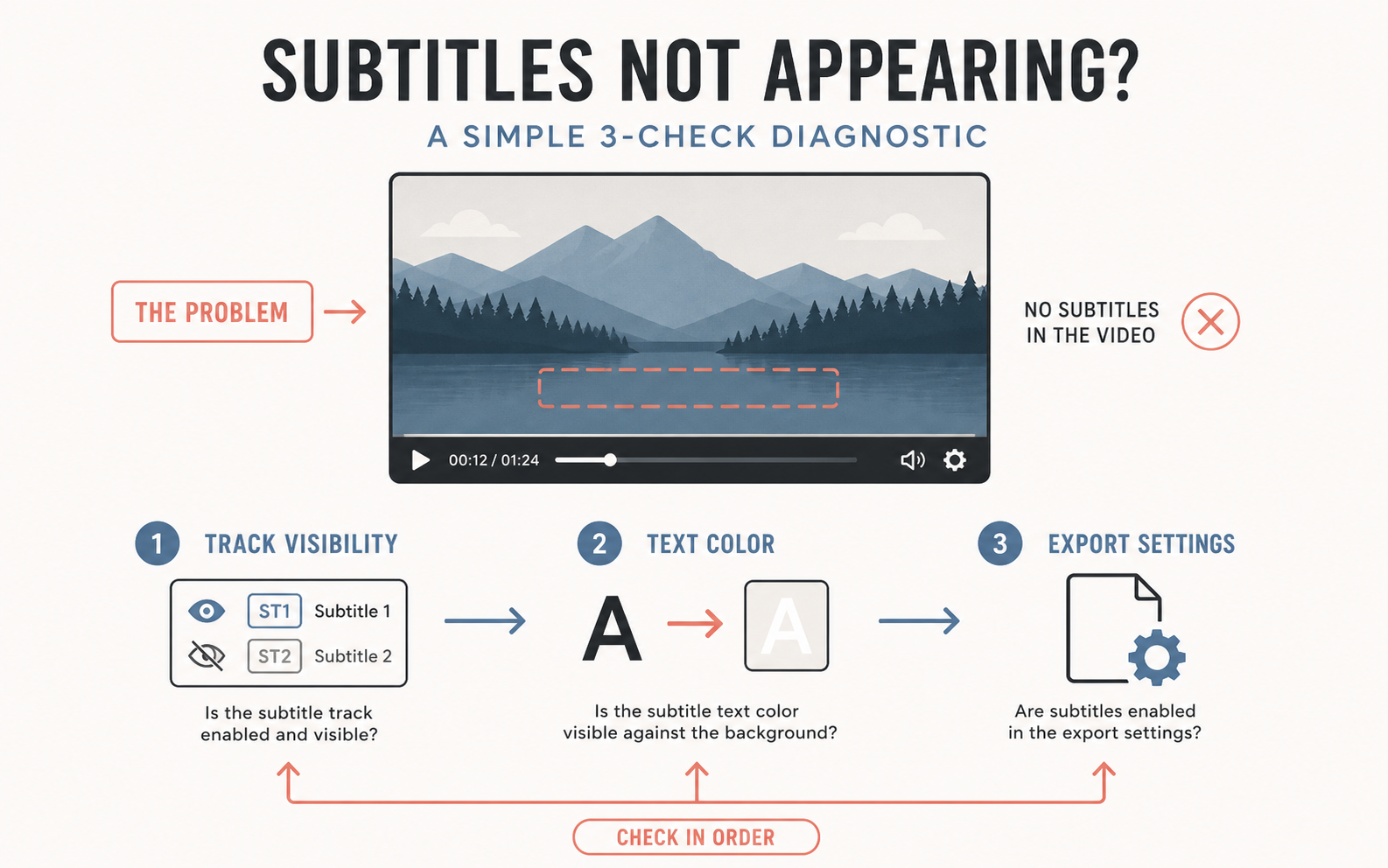
If your subtitles are missing from the viewer during editing, the most common cause is a disabled subtitle track. The subtitle track, usually labeled "ST 1" in the timeline, can become accidentally disabled, hiding all subtitle text from the preview window.
To check whether your subtitle track is enabled:
- Go to the Edit page.
- Look at the track headers on the left side of your timeline.
- Find the subtitle track (labeled "ST 1" or "ST 2").
- Click the Enable Track icon — a small rectangle icon — on the subtitle track header. When enabled, the icon will appear highlighted or filled.
If you are working with multiple subtitle tracks (for example, separate tracks for different languages), check that each track you want visible is enabled individually. DaVinci Resolve allows you to disable individual tracks without affecting others, which is useful for managing multilingual projects but can also cause confusion when tracks get turned off accidentally.
For more DaVinci Resolve tips, read our guide on DaVinci Resolve AI Tools for Colorists and Editors.
Master Fusion effects with How to use node-based compositing in DaVinci Resolve Fusion.
How do you fix invisible subtitle text color in DaVinci Resolve?
If the track is enabled but the text is still invisible on screen, the text color has likely been set to transparent or is matching the background color of the video. This happens frequently when copying subtitle presets from other projects or when a track style inherits incorrect formatting.
To fix invisible subtitle text:
- Click on the subtitle block in the timeline to select it.
- Open the Inspector panel on the top right of the interface.
- Go to the Track Style or Text tab, depending on your Resolve version.
- Locate the Color setting under the Text section.
- Change the color to solid white (
#FFFFFF), bright yellow, or any color that contrasts with your video content. - Adjust the Outline width and Background opacity if the text still blends into the video.
A good practice is to use white text with a black outline or a semi-transparent black background box behind the text. This ensures readability across any video content, regardless of the brightness or color of the underlying footage.
How do you fix subtitles missing on export in DaVinci Resolve?
Subtitles visible during editing but missing in the final rendered video indicate that the Deliver page export settings are not configured to include subtitles. DaVinci Resolve supports two subtitle export methods: burning subtitles directly into the video or exporting them as a separate SRT file.
To include subtitles in your export:
- Go to the Deliver page.
- Scroll down to the Subtitle Settings section in the left panel.
- Check the box for Export Subtitle.
- Choose your export format:
- Burn into video — Renders the subtitle text permanently onto the video frames. This is the most reliable method because the subtitles become part of the video itself and cannot be turned off by the viewer.
- Separate subtitle file — Exports the subtitles as an SRT or ASS file alongside the video. This preserves the ability for viewers to toggle subtitles on and off.
- If you choose to burn into video, select the specific subtitle track you want to render.
For YouTube uploads, burning subtitles into the video is recommended for accessibility, while also uploading the separate SRT file to YouTube's own caption system. This dual approach ensures your content is accessible regardless of the playback platform.
How do you fix a blank SRT import in DaVinci Resolve?
Importing an SRT file that appears as a blank or empty subtitle track is usually caused by incorrect timecode formatting or wrong text encoding in the SRT file itself.
To fix a blank SRT import:
- Open the
.srtfile in a plain text editor (Notepad on Windows, TextEdit on Mac in plain text mode, or a code editor like VS Code). - Verify that all timecodes follow the correct SRT format:
00:00:00,000 --> 00:00:05,000. Note the comma (not a period) between seconds and milliseconds. - Check that each subtitle entry has a sequential number followed by the timecode line, then the subtitle text, followed by a blank line.
- Save the file with UTF-8 encoding. Most modern text editors allow you to choose the encoding in the "Save As" dialog. UTF-8 is essential for special characters, accented letters, and non-Latin scripts.
- Re-import the corrected file into DaVinci Resolve by right-clicking the subtitle track and selecting Import SRT.
Why do subtitle timecodes go out of sync in DaVinci Resolve?
Subtitle timecodes can drift out of sync when the frame rate of the SRT file does not match the frame rate of the DaVinci Resolve timeline. This is a common issue when importing SRT files generated by automated transcription services that default to 30fps timing, while your project runs at 23.976fps or 25fps.
To fix subtitle sync issues:
- Check the frame rate of your DaVinci Resolve timeline in the project settings.
- Verify that your SRT file was generated at the matching frame rate.
- If the SRT was generated at the wrong frame rate, use a tool like Subtitle Edit or Aegisub to batch-shift the timecodes.
- Alternatively, regenerate the SRT file using Cutsio, which automatically matches the frame rate of your source footage when generating transcripts and subtitle files.
Cutsio's free transcription feature generates accurate, timestamped transcripts that can be exported as SRT files matching your project's exact frame rate. This eliminates sync drift at the source. Upload your footage to Cutsio, let it transcribe automatically, and export a frame-rate-accurate SRT file for import into DaVinci Resolve.
Stop fixing SRT files. Generate them right the first time.
Cutsio's free transcription exports frame-rate-accurate SRT files for DaVinci Resolve. No sync drift, no timecode guessing, no manual reformatting.
Choose a plan based on your storage and visual-indexing needs.
How do you fix subtitles showing in the wrong language?
If subtitles appear in the wrong language, you are likely viewing a subtitle track that contains different language content than expected. DaVinci Resolve supports multiple subtitle tracks, and it is easy to accidentally add new subtitles to the wrong track.
To fix wrong-language subtitles:
- In the Edit page, look at the track headers and identify which subtitle track is active.
- If you have multiple subtitle tracks (e.g., "ST 1" for English, "ST 2" for Spanish), ensure you are editing the correct one.
- To move subtitles between tracks, cut the subtitle blocks, select the correct track, and paste them.
- Rename your subtitle tracks in the track header by right-clicking and selecting Rename to avoid future confusion.
How do you prevent subtitle issues in future DaVinci Resolve projects?
Preventing subtitle issues starts with a consistent workflow. Here are the best practices for trouble-free subtitles:
- Use a standardized subtitle template — Create a subtitle track style with your preferred font, size, color, and background settings, then save it as a preset.
- Match frame rates — Always generate SRT files at the same frame rate as your project timeline.
- Export using burn-in for final delivery — When exporting for clients or publishing platforms, use the "Burn into video" option to ensure subtitles are always visible.
- Verify subtitles before export — Play through the last 30 seconds of your timeline with subtitles enabled to confirm they appear correctly before starting a long render.
- Use Cutsio for transcription and SRT export — Cutsio generates frame-rate-accurate transcripts and SRT files automatically, eliminating the most common subtitle formatting and sync issues.
Skip the subtitle troubleshooting. Generate accurate SRT files automatically.
Cutsio's free AI transcription generates timestamped transcripts that export as frame-rate-accurate SRT files. Upload your footage, get perfect subtitles, and import them directly into DaVinci Resolve — no formatting errors, no sync drift.
- Free AI transcripts with sentence-level timestamps
- Export SRT files that match your project frame rate
- Semantic Search to find any spoken phrase across your library
Choose a plan based on your storage and visual-indexing needs.
FAQ
Can I export subtitles as a separate file in DaVinci Resolve?
Yes. In the Deliver page, enable the Export Subtitle option and choose "Separate subtitle file" instead of "Burn into video." This exports an SRT or ASS file alongside your video.
Why are my subtitles shifting position on export?
Subtitle position issues on export are usually caused by mismatched aspect ratios. Ensure your subtitle track style uses a position that works at both your timeline aspect ratio and your export aspect ratio. Center-bottom is the safest default.
Does Cutsio generate SRT files for any video format?
Yes. Cutsio's media asset management platform generates transcripts and SRT files for any uploaded video, including MP4, MOV, ProRes, and screen recordings. The SRT export automatically matches the source video frame rate.
How do I add subtitles to only part of a video in DaVinci Resolve?
Create subtitle blocks only over the segments that need subtitles. You can trim subtitle clip duration just like video clips by dragging the edges in the timeline. Leave gaps where no subtitles are needed.
Related reads
- How to Fix Render Errors in DaVinci Resolve — Fix DaVinci Resolve render errors by isolating the failing range, checking storage and permissions, testing codecs, and rebuilding only broken sections.
- DaVinci Resolve Export Errors: 11 Fixes That Work — Fix DaVinci Resolve export errors by isolating the failing range, checking storage and permissions, testing codecs, and repairing effects on the Deliver page.
- How to Fix Export with No Audio in DaVinci Resolve — Clear instructions to solve the missing audio problem when exporting videos from DaVinci Resolve.