How to Fix Black Screen Preview in DaVinci Resolve
Fix a black screen preview in DaVinci Resolve by checking GPU drivers, processing mode, viewer settings, media status, and common UI glitches.
The black screen preview in DaVinci Resolve is typically caused by incorrect GPU driver configuration, a mismatched GPU processing mode, or a UI layout glitch. Audio plays normally, the playhead moves, but the viewer shows nothing but black. Each cause has a specific fix that restores the preview immediately.
Why does DaVinci Resolve show a black screen during playback?
The most common reason for a black screen preview is that DaVinci Resolve cannot properly communicate with your graphics card. Resolve is an incredibly GPU-intensive application, far more so than typical video editors. If the GPU driver is outdated, incompatible, or if Resolve is trying to use the wrong graphics processor, the viewer will fail to render frames while audio continues to play.
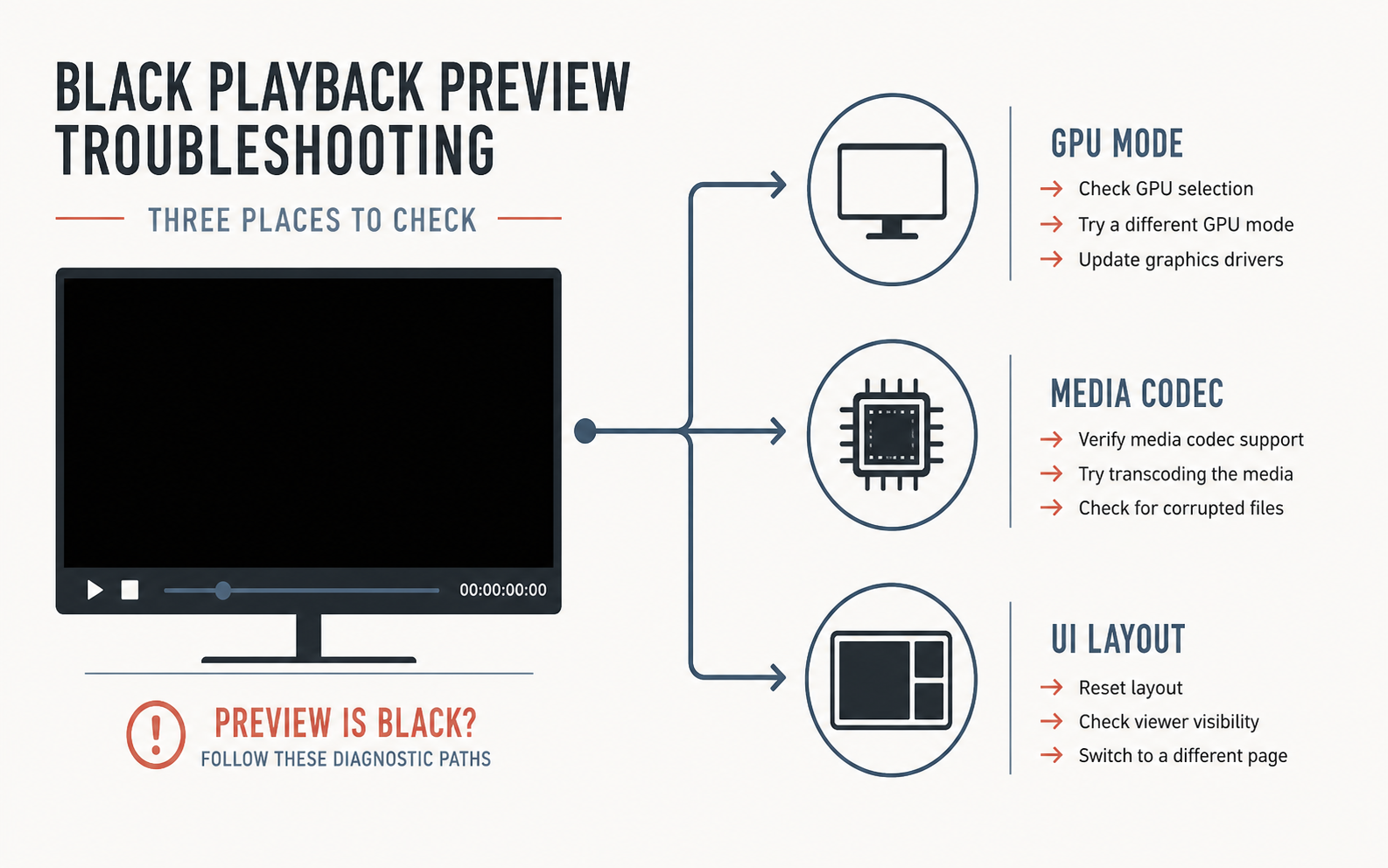
Unlike consumer video editing software that falls back to CPU rendering when a GPU issue occurs, DaVinci Resolve will simply stop displaying frames. This is because the entire processing pipeline — including the viewer — is designed to run on the GPU. Understanding this dependency is the first step to diagnosing the black screen problem.
For more DaVinci Resolve tips, read our guide on DaVinci Resolve AI Tools for Colorists and Editors.
Deliver videos professionally with How to Share Video Cuts With No Account Required for Viewers.
How do you fix a black screen preview by updating GPU drivers?
The number one cause of a black screen preview is an outdated or incompatible GPU driver. DaVinci Resolve relies on specific driver versions that have been certified for stability with professional video applications.
To fix GPU driver issues:
- Identify your graphics card — Check which GPU you have in Device Manager (Windows) or System Information (Mac).
- Install the correct driver type — For NVIDIA GPUs, install the Studio Driver rather than the Game Ready Driver. Studio Drivers are tested and certified for stability with professional creative applications like DaVinci Resolve, Adobe Premiere Pro, and Autodesk Maya. Game Ready Drivers prioritize performance for video games and may introduce instability in Resolve.
- For AMD GPUs — Install the latest AMD Radeon PRO drivers or the recommended Adrenalin drivers for your specific card model.
- For Mac users — macOS handles GPU drivers through system updates. Ensure your macOS is up to date by going to System Settings > General > Software Update.
- Roll back if needed — If the black screen started appearing immediately after a driver update, roll back to the previous driver version. New drivers sometimes introduce regressions that break compatibility with specific Resolve versions.
How do you fix the black screen by changing GPU processing mode in preferences?
If your GPU drivers are up to date but the black screen persists, Resolve may be configured to use the wrong GPU processing mode or the wrong graphics processor. This is especially common on laptops with both integrated graphics (Intel or AMD IGP) and a dedicated GPU (NVIDIA or AMD).
To fix the GPU configuration:
- Open DaVinci Resolve and go to DaVinci Resolve > Preferences on Mac or Edit > Preferences on Windows.
- Click on the System tab, then select Memory and GPU from the left sidebar.
- Under GPU Processing Mode, uncheck "Auto" and manually select the correct mode:
- CUDA — For NVIDIA graphics cards. This is the fastest option for NVIDIA users.
- Metal — For Mac users with Apple Silicon or AMD GPUs.
- OpenCL — For older AMD GPUs or systems where CUDA and Metal are unavailable.
- Under GPU Selection, uncheck "Auto" and manually ensure your primary dedicated GPU is selected. On laptops, make sure the integrated Intel or AMD IGP is unchecked.
- Click Save and restart DaVinci Resolve.
After restarting, the viewer should display frames correctly. If the problem persists, try switching between CUDA and OpenCL (on Windows) to see which mode works with your specific GPU and driver combination.
How do you fix the black screen with 10-bit h.265 footage on Windows?
If you are working with 10-bit h.265 (HEVC) footage — common from modern mirrorless cameras, drones, and some smartphones — the free version of DaVinci Resolve on Windows does not support hardware decoding for this codec. This means Resolve cannot display preview frames for these files, resulting in a black screen.
This is a known limitation of the free version. DaVinci Resolve Studio (the paid version) includes the hardware decoding licenses required to play 10-bit h.265 footage natively.
To fix this issue without upgrading to Studio:
- Transcode your footage — Use a free tool like HandBrake or Shutter Encoder to convert your 10-bit h.265 files into an edit-friendly format. The recommended format is:
- DNxHR HQ — For 1080p projects
- ProRes 422 — For Mac users
- DNxHR HQX — For 4K projects
- Set the transcode settings — In HandBrake, choose a constant frame rate matching your source, RF value of 18-20 for visually lossless quality, and the DNxHR or ProRes encoder.
- Replace the footage in your timeline — After transcoding, relink your timeline to the new files or import them and rebuild your edit.
If you work with 10-bit footage regularly, upgrading to DaVinci Resolve Studio is the more practical long-term solution. It removes the transcoding step entirely and allows you to edit natively with hardware-accelerated decoding.
How do you fix a black screen caused by a UI layout glitch?
Sometimes the black screen is not a GPU or codec issue at all — it is simply a UI rendering glitch. The viewer panel loses its connection to the render pipeline, but the rest of the interface works normally.
To fix a UI layout glitch:
- Go to the top menu and select Workspace > Reset UI Layout.
- This forces DaVinci Resolve to redraw all panels, including the viewer.
- If the viewer is still black, try switching to a different workspace layout (e.g., from "Editing" to "Color" and back).
- As a last resort, restart DaVinci Resolve entirely.
The Reset UI Layout option also fixes other display anomalies, such as missing panel headers, misaligned toolbars, or viewers that show only a gray background.
How do you prevent black screen issues with Cutsio pre-processing?
A practical way to avoid codec-related black screen issues entirely is to pre-process your footage through Cutsio before importing it into DaVinci Resolve. Cutsio accepts virtually any video format — including 10-bit h.265, H.264, ProRes, and RAW formats — and generates optimized, edit-ready assets.
The workflow is simple:
- Upload your raw footage to Cutsio regardless of format or codec.
- Cutsio generates free AI transcripts, removes silence with the Silent Slicer, and creates searchable metadata using Semantic Search.
- Use Cutsio's text-based interface to find the best moments and assemble a rough cut.
- Export an XML or EDL timeline directly into DaVinci Resolve.
- The XML timeline references your original files, but by this point you have already done the heavy pre-edit work in Cutsio, so you avoid the transcoding bottleneck entirely.
This approach is especially useful for editors who receive mixed-format footage from multiple sources — some 8-bit, some 10-bit, some from phones, some from cinema cameras. Instead of troubleshooting each codec individually, you process everything through Cutsio first and only bring the selected clips into Resolve for finishing.
Skip the codec troubleshooting. Pre-edit in Cutsio first.
Cutsio accepts any video format, generates free transcripts, removes silence automatically, and exports clean XML timelines to DaVinci Resolve. No more black screens, no more transcoding — just a smooth edit from upload to finish.
- Accepts any video format — H.264, H.265, ProRes, RAW
- Free AI transcripts with Semantic Search across your library
- XML/EDL export directly to DaVinci Resolve for finishing
Choose a plan based on your storage and visual-indexing needs.
FAQ
Does DaVinci Resolve free support 10-bit video playback?
The free version of DaVinci Resolve on Windows does not support hardware-accelerated decoding for 10-bit h.265 (HEVC) footage. You must transcode to DNxHR or ProRes, or upgrade to DaVinci Resolve Studio.
Why does my preview work in other editors but not DaVinci Resolve?
Other video editors use different rendering pipelines that may fall back to CPU-based decoding when a GPU codec is unavailable. DaVinci Resolve requires GPU-accelerated decoding for the viewer, so codecs without GPU support will show a black screen.
Can Cutsio help with 10-bit footage issues?
Yes. Cutsio can index supported 10-bit H.265 review media, generate transcripts and previews, and export XML timelines to DaVinci Resolve. Keep any production-specific proxy or conform transcode decisions in the NLE workflow.
How do I know if my GPU driver is causing the black screen?
If audio plays but the viewer is black, and switching GPU processing modes in Preferences does not fix it, the GPU driver is the most likely culprit. Install the latest Studio Driver for NVIDIA or PRO driver for AMD and restart Resolve.
Related reads
- "How to Fix Video [Stuttering in DaVinci Resolve"](https://cutsio.com/blog/how-to-fix-dropped-frames-davinci-resolve) — Fix choppy DaVinci Resolve playback with proxy or optimized media, lower preview load, render cache, storage checks, and export diagnostics.
- How to Fix Dropped Frames in DaVinci Resolve — Fix dropped frames in DaVinci Resolve by separating playback from render problems, then using proxy media, optimized media, render cache, codec checks, and storage diagnostics.
- How to Fix GPU Not Detected in DaVinci Resolve — Resolve requires a powerful graphics card. Learn how to force DaVinci Resolve to detect and utilize your dedicated GPU.