How to Fix Audio Waveforms Not Showing in DaVinci Resolve
Fix DaVinci Resolve audio waveforms not showing by checking display settings, track height, audio streams, cache behavior, nested clips, and metadata.
How do you fix audio waveforms that are not showing in DaVinci Resolve?
Fix missing DaVinci Resolve audio waveforms by first checking the timeline waveform display and audio track height, then confirming the clip has an available audio track and allowing Resolve to finish analyzing it. If one imported file remains blank while other clips work normally, Cutsio's free Media Info tool is the quickest way to inspect its audio codec, sample rate, channels, and duration locally before you re-import or transcode it.
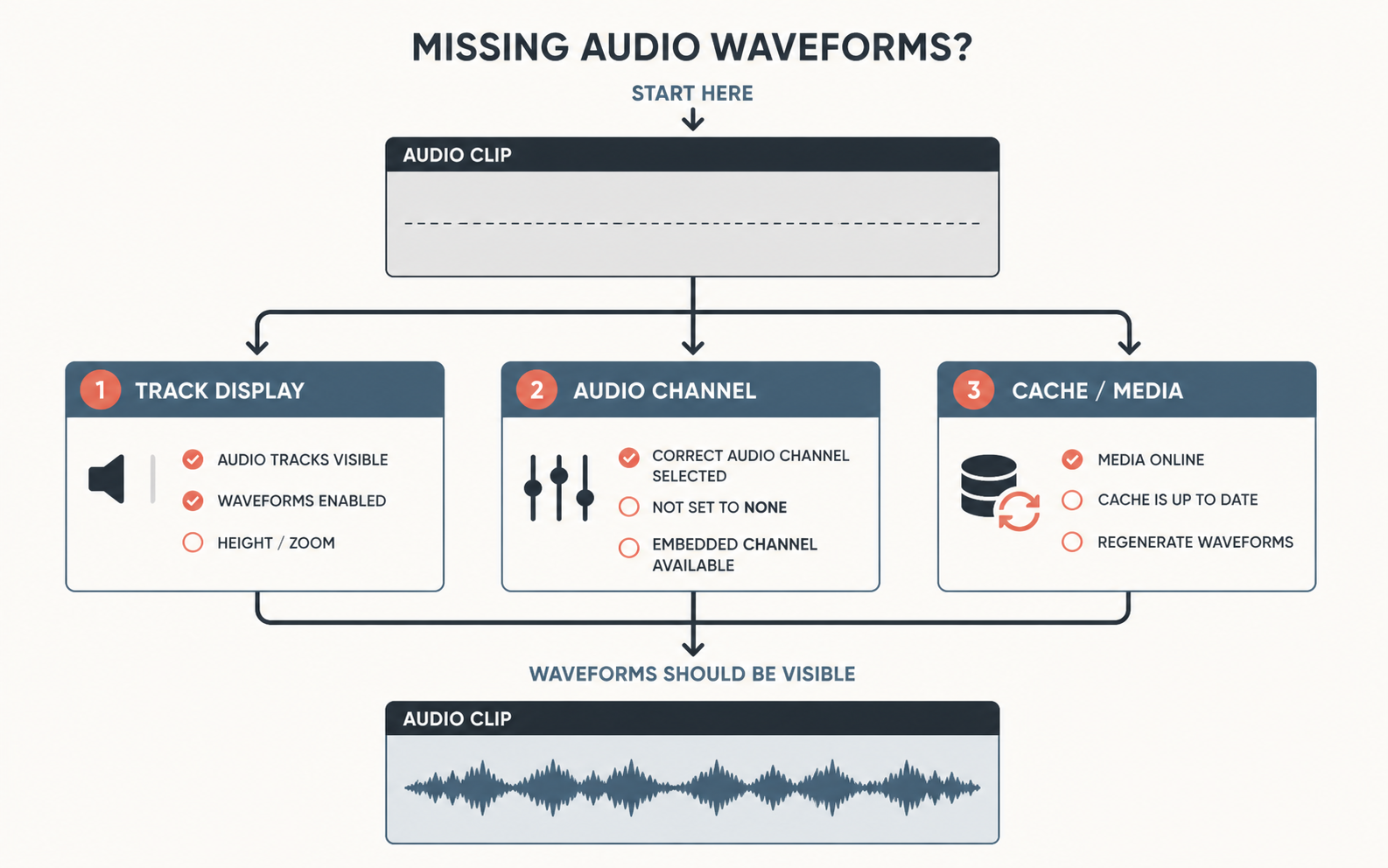
How can you tell whether the problem is display or media?
Drop a known-good audio clip into a new timeline. If its waveform appears, the original file or channel layout is the likely problem. If it does not, check timeline display settings and track height before re-importing anything.
Waveforms are visual representations of the audio; their absence does not necessarily mean the audio is missing or broken. If you can hear the clip but cannot see peaks in the timeline, the most likely causes are a hidden display setting, a track that is too short to draw the waveform, pending analysis, or a nested/editing structure that hides the original waveform. If you cannot hear the clip either, diagnose the audio track and source file before treating it as a display problem.
Start with a clean test: add a known-good WAV, MP3, or clip with clear dialogue to a new timeline. If that waveform appears, Resolve's global display is working and the problem is limited to the source media or the original timeline. If no waveform appears anywhere, start with timeline view settings and track height.
Are waveforms hidden by a timeline display setting?
Usually, yes. Resolve can hide audio waveforms in the timeline to reduce visual clutter, and a compact track can make a visible waveform look like a solid strip of color. Turn on audio waveforms and enlarge the affected track before changing cache or media settings.
On the Edit page, open Timeline View Options above the timeline. Look for the audio waveform display control and make sure it is enabled. The icon placement and wording can vary between Resolve versions, so use the visual waveform symbol rather than relying on an exact menu label. Then drag the audio track boundary taller or use the track-height controls. A waveform needs enough vertical space to be readable.
Also check the timeline zoom. When a long clip is viewed at a very broad scale, individual peaks can blend into an apparently flat line. Zoom in on a few seconds of spoken dialogue or music with obvious changes in volume. If the waveform becomes visible only at close zoom, Resolve is drawing it; the issue is simply scale.
| What you see | Likely reason | First action |
|---|---|---|
| Every timeline track is a solid block | Waveform display is off | Enable audio waveforms in Timeline View Options |
| Only a very short-looking line appears | Audio track is too small | Increase the track height |
| Waveform appears when zoomed in | The timeline is too zoomed out | Check the clip at a closer time scale |
| Audio meters move but no peaks show | Display or cached waveform issue | Toggle waveform display, then reopen the timeline |
| No meters, no sound, and no waveform | Audio is offline, muted, missing, or unsupported | Check the clip's audio track and source file |
Does the clip actually contain an audio track that Resolve can use?
Confirm that the source has audio and that the correct timeline track is enabled before rebuilding waveforms. A video file can import with no usable audio stream, an audio-only clip can be placed on a disabled track, or a linked clip can have had its audio removed from the edit.
In the Media Pool, inspect the clip and listen to it in the viewer. Then place it on an enabled audio track in a fresh timeline and watch the meters. If the meters move and the clip plays, the audio is available. If the meters stay inactive, check the track's mute/solo state, patching, clip volume, and whether the imported item contains an audio stream at all.
When the source is uncertain, use the Media Info tool before changing Resolve preferences. It reads common video and audio files in the browser and reports the container, video/audio tracks, codec, sample rate, channel count, duration, and other metadata without uploading the file. That quickly answers questions such as “does this MOV actually contain two audio channels?” or “is this file using an unusual audio codec?”
Do not confuse a silent recording with a missing waveform. A genuinely silent section can produce a nearly flat waveform even though the file is correct. Compare it with a section that has speech or music, and check the source's meters before deciding that Resolve failed to generate anything.
Why do waveforms appear on some clips but not on one imported file?
When only one file has no waveform, the timeline display is usually not the cause. The likely issue is the file's audio stream, import state, metadata, or a source format Resolve cannot decode as expected.
First, wait briefly after importing a long clip. Resolve may need time to read the audio and generate visual data, especially when the media is on a slow external drive, a network volume, or an overloaded system. Leave Resolve open, avoid moving the file, and test whether the waveform appears after the background work completes.
Next, verify that the original file still plays outside the project and that it has not been moved or renamed. If Resolve marks media offline or cannot reach a drive consistently, waveform data may not be available even when an old cached preview briefly appears. Relink the original media rather than making a copy with an ambiguous filename.
If the source uses a problematic capture format or unusual audio encoding, create an editing-friendly replacement from the original file. For video captures, a constant-frame-rate transcode with a widely supported audio format can be more reliable than repeatedly forcing Resolve to parse a troublesome file. Test one clip first. The goal is to fix the source path and decode reliability, not to create a lower-quality copy of every asset unnecessarily.
How do you refresh a waveform that is stuck or incomplete?
Refresh a stuck waveform by reopening the timeline, testing the clip in a new timeline, and rebuilding only the relevant cached data where Resolve provides a safe command. Do not start by deleting broad cache directories or project files.
Save the project, close and reopen the timeline, then add the same source to a new test timeline. If the new timeline draws the waveform, the original timeline's display state or local cache likely needs attention. Toggle waveform display off and on, change the track height, and reopen the project before using more intrusive steps.
Resolve versions expose cache and waveform commands differently, so prefer the specific options visible in your installation over a tutorial that assumes one menu layout. If Resolve offers a clip-level waveform refresh or cache rebuild action, use it on the affected clip first. If the project has many stale-looking waveform displays, clear only the appropriate render/cache data after confirming what the command will remove. Cache clearing can require Resolve to regenerate previews and may slow down the next session; it should not be your first response to a hidden display toggle.
Avoid “forcing” a waveform by cutting the clip and undoing repeatedly. That can create accidental edits without addressing why the waveform is absent. A clean test timeline tells you far more reliably whether the source or the project needs attention.
Why are waveforms missing on compound clips, multicam clips, or nested timelines?
Nested structures can display an overview or no detailed waveform on the parent timeline even though the original audio remains intact. Open the nested timeline or source clip to determine whether the waveform exists at the level where the actual audio lives.
For a compound clip or nested timeline, right-click and open it in its own timeline. If the waveform appears inside, Resolve can read the audio and the parent view is simply abstracting the underlying clips. You do not need to decompose the clip merely to prove the waveform exists. Decompose only when the edit genuinely needs individual clips back on the main timeline and you understand the impact on the structure.
Multicam clips can create a similar confusion: the active angle, audio-follow-video behavior, and selected audio track determine what you hear and what Resolve shows. Check the multicam source sequence and confirm that the intended audio angle is active. For a synced clip created from separate camera and recorder sources, inspect the source audio inside the synced structure before assuming the main timeline has lost it.
How can you troubleshoot a waveform issue without damaging the edit?
Use a small, reversible test sequence and preserve the original media. Waveform troubleshooting should not require destructive changes to a locked cut.
- Save the project and duplicate the affected timeline.
- Check waveform display, track height, zoom, track enablement, and audio meters.
- Add the source clip to a fresh timeline.
- Inspect the file's audio stream, sample rate, channels, and duration.
- Reopen Resolve or use the narrowest available cache refresh if the source is valid.
- Test one transcode only if the source format appears to be the problem.
- Replace media only after the test clip plays and displays correctly.
This order isolates the display layer, timeline layer, and source-media layer. It also keeps you from accidentally deleting render work, breaking links, or introducing new sync errors while trying to restore a visual aid.
How can you prevent waveform problems in future Resolve projects?
Prevent most waveform problems by keeping source media online, using predictable audio formats, and giving Resolve time to analyze large imports before editing at speed. Store active project media on reliable local or properly mounted storage, avoid renaming files after import, and transcode unusual phone, screen, or browser captures before they become a critical part of the timeline.
For dialogue-heavy projects, a searchable pre-edit workspace can also reduce the cost of a temporary waveform problem. Cutsio's Visual Intelligence analyzes the visual content of every frame alongside audio, creating a unified search index for any moment. It will not replace a Resolve waveform, but it can help you retrieve a spoken phrase or relevant shot while you diagnose the source file and timeline display.
FAQ
Why can I hear audio in DaVinci Resolve but not see a waveform?
The audio is usually valid and the waveform is likely hidden, too small to see, zoomed out, or still being generated. Check Timeline View Options, track height, and a close timeline zoom first.
Why are audio waveforms missing on only one clip?
The source file or its import state is the likely cause. Confirm that the clip has an audio stream, stays online, and works in a fresh timeline before rebuilding cache data.
Can a compound clip hide audio waveforms in DaVinci Resolve?
Yes. A compound or nested clip can hide detailed source waveforms at the parent level; open the nested timeline to inspect the actual audio clips.
Should I clear all DaVinci Resolve cache files when a waveform is missing?
No. Start with display settings, a fresh timeline test, and a narrow clip-level refresh where available. Broad cache clearing is slower and may remove useful render data.
How can I check whether a video file contains usable audio before importing it?
Use Cutsio's free Media Info tool to inspect the file's audio codec, sample rate, channels, duration, and tracks locally in the browser.
Related reads
- How to Fix Audio Distortion in DaVinci Resolve — Direct solutions for fixing clipping, crackling, and distorted audio playback in DaVinci Resolve.
- How to Fix Export with No Audio in DaVinci Resolve — Clear instructions to solve the missing audio problem when exporting videos from DaVinci Resolve.
- Why Audio Waveform is Missing in Final Cut Pro — Direct solutions for fixing missing audio waveforms and rebuilding waveform cache in Final Cut Pro.