How to use sound effect libraries in DaVinci Resolve Fairlight
DaVinci Resolve Fairlight lets you access external sound libraries directly from the audio page with auditioning, sync, and marking tools. This guide covers searching, previewing, and placing sound effects.
How do you access sound effect libraries in DaVinci Resolve Fairlight?
Click the Sound Library icon at the top left of the Fairlight page to open the search window. Browse your connected sound libraries, find a sound effect, mark the section you want to use, and click the Audition button to try it on your timeline. You can audition multiple clips until you find the perfect sound. Click the Confirm button to keep it or Cancel to remove it and try another.
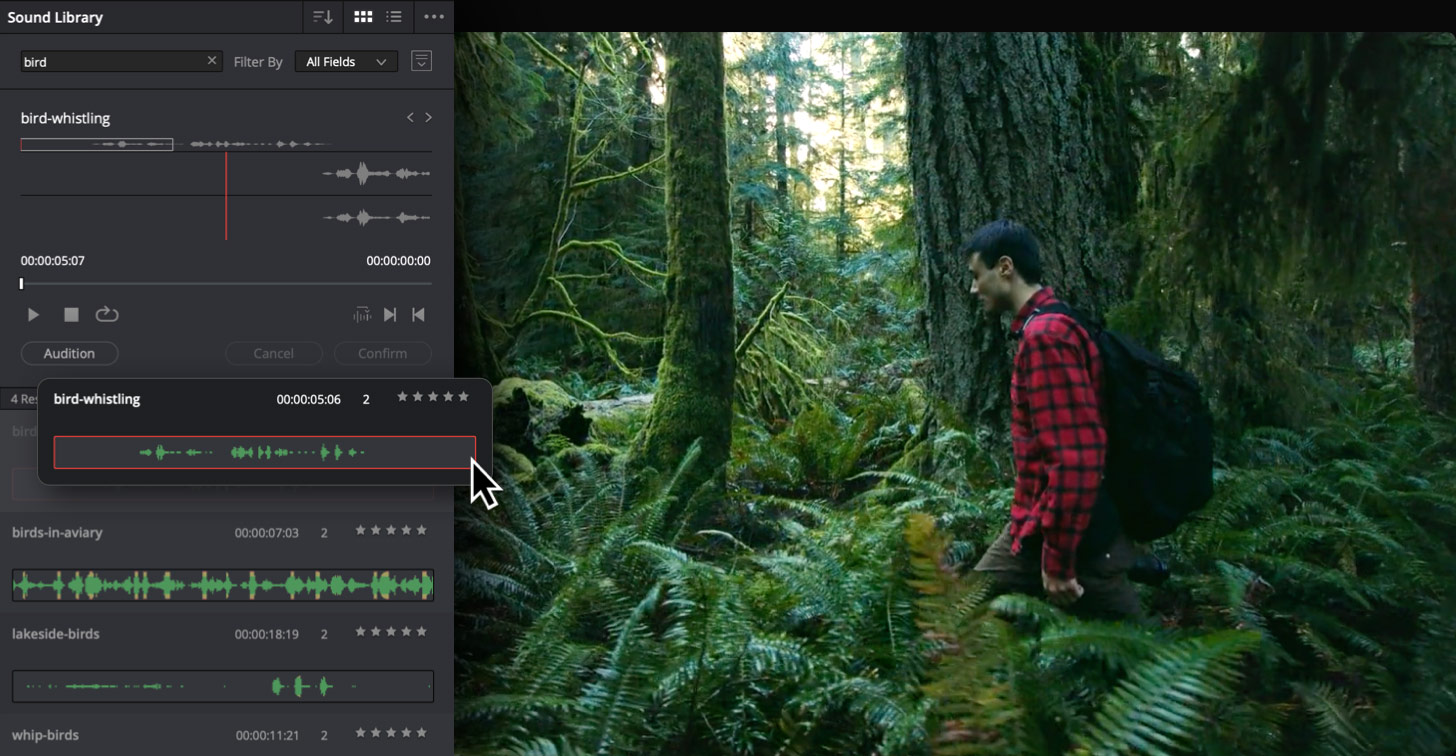
The Sound Library integrates external sound effects collections directly into the Fairlight workflow. You never need to leave the application to search, preview, and place sound effects. Supported formats include standard audio files like WAV, AIFF, and MP3.
For more DaVinci Resolve tips, read our guide on DaVinci Resolve AI Tools for Colorists and Editors.
Improve your audio workflow with How to adjust clip level, pan, and pitch in DaVinci Resolve Fairlight.
How does the Sync function work in the Sound Library?
The Sync button lets you align any part of the sound effect waveform to the playhead position in your timeline. When you find a sound effect with a specific transient — a door slam, a gunshot, a footstep — mark the transient in the sound preview, move your timeline playhead to the sync point, and click Sync. The sound effect is placed with the transient aligned exactly to the playhead.
This eliminates manual positioning of sound effects after placing them on the timeline. For Foley and hard effects where precise timing is critical, Sync saves the time of zooming in and sliding the clip to align the transient.
Can you use your own sound libraries with Fairlight?
Yes. The Sound Library panel scans folders you designate. Point it to any local or network folder containing audio files, and Fairlight indexes the contents. You can search, preview, and place sounds from your personal collections, commercial sound libraries, or production archives.
For editors who organize sound libraries across multiple projects, Cutsio's Visual Intelligence can index sound effect video clips for visual search. Find the exact scene that needs a specific sound, export the clip into Resolve, and place your sound effects in Fairlight.
Find sounds faster. Edit faster.
Pre-edit with Cutsio to identify the scenes needing sound design. Then use Fairlight Sound Library to find and place the perfect effects.
-
Visual Intelligence to find scenes needing sound
-
EDL and XML export for Resolve import
-
Non-destructive workflow — originals untouched
Choose a plan based on your storage and visual-indexing needs.
Related reads
- How to use automatic ducking and Foley in DaVinci Resolve Fairlight — DaVinci Resolve Fairlight includes automatic ducking that lowers music during dialogue and Foley tools including the Foley Sampler for performing sound effects in real time. This guide covers setting up ducking and creating Foley.
- How to organize audio tracks with folders in DaVinci Resolve 21 Fairlight — DaVinci Resolve 21 introduces audio folders in Fairlight for grouping dialogue, music, and effects tracks. This guide covers setup, bus routing, and mix management for complex audio post-production.
- How to record ADR in DaVinci Resolve Fairlight — DaVinci Resolve Fairlight includes professional Automatic Dialog Replacement tools with visual cue systems, beeps, countdowns, and multi-take recording. This guide covers setup, cue lists, recording, and take management.