---
title: "AI Tools to Repurpose Long-Form Content into Shorts"
author: "Cutsio Team"
date: "2026-03-19"
lastmod: "2026-05-20"
category: "Video Organization & Management"
excerpt: "Discover the best AI tools to repurpose long-form content into shorts, including Opus Clip, Munch, Cutsio with AI Reframe and Visual Intelligence, and Descript, to automate your video workflow."
tags: ["AI Tools","Content Repurposing","Shorts","AI Reframe","Visual Intelligence"]
---

The best AI tools to repurpose long-form content into shorts are Opus Clip, Munch, Cutsio, and Descript. These platforms automatically ingest hours of podcast or webinar footage, transcribe the audio, use semantic AI to extract the most engaging 30-to-60-second highlights, reframe the video to a vertical 9:16 aspect ratio using either automated cropping or server-side AI Reframe, and burn in dynamic captions optimized for TikTok, Instagram Reels, and YouTube Shorts.

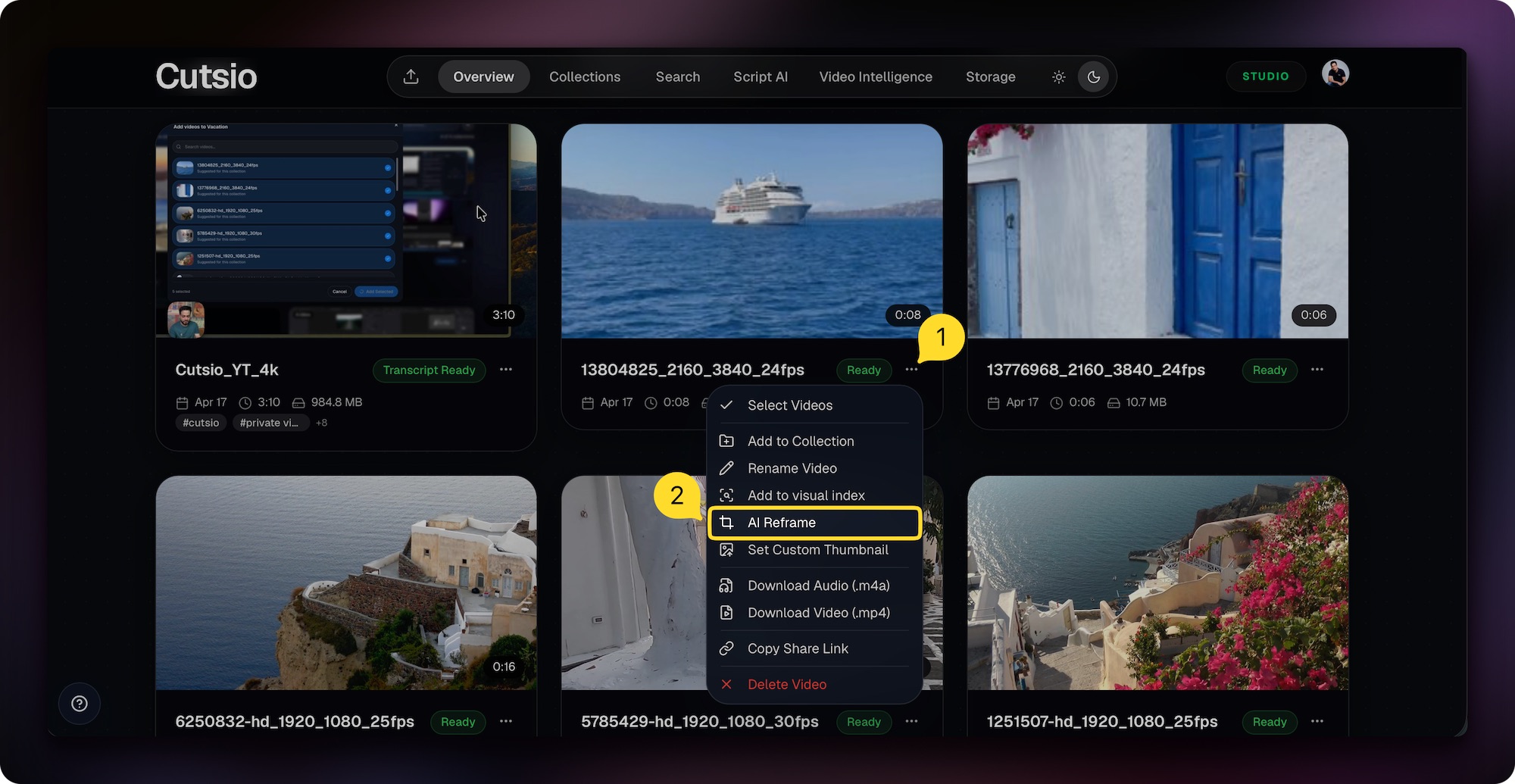
Cutsio's [AI Reframe](/ai-reframe) handles the most tedious part of repurposing — server-side 16:9 to 9:16 conversion — so you get vertical exports back in your library without rendering on your machine. Take any landscape video, press "AI Reframe," and close your laptop. Cutsio reframes it for Shorts, Reels, and TikTok on its servers and delivers the vertical version back to your library.

<div class="not-prose my-12 rounded-2xl border border-slate-200 dark:border-white/[0.08] bg-gradient-to-br from-slate-50 to-white dark:from-neutral-900 dark:to-neutral-950 p-6 md:p-8 shadow-sm">
  <style>
    @keyframes reframe-scan {
      0% { transform: translateY(-100%); }
      100% { transform: translateY(300%); }
    }
    @keyframes reframe-pulse-box {
      0%, 100% { box-shadow: 0 0 4px rgba(59,130,246,0.4); }
      50% { box-shadow: 0 0 14px rgba(59,130,246,0.8); }
    }
    @keyframes reframe-slide-in {
      0% { opacity: 0; transform: translateX(30px) scale(0.92); }
      100% { opacity: 1; transform: translateX(0) scale(1); }
    }
    @keyframes reframe-progress {
      0% { width: 15%; }
      30% { width: 40%; }
      60% { width: 72%; }
      100% { width: 100%; }
    }
    @keyframes reframe-dot-pulse {
      0%, 100% { opacity: 1; transform: scale(1); }
      50% { opacity: 0.5; transform: scale(1.3); }
    }
    @keyframes reframe-fade-in-up {
      0% { opacity: 0; transform: translateY(8px); }
      100% { opacity: 1; transform: translateY(0); }
    }
    .reframe-container .scan-line { animation: reframe-scan 1.8s ease-in-out infinite; }
    .reframe-container .detection-box { animation: reframe-pulse-box 1.5s ease-in-out infinite; }
    .reframe-container .result-panel { animation: reframe-slide-in 0.7s ease-out; }
    .reframe-container .progress-bar { animation: reframe-progress 3s ease-out 1 forwards; }
    .reframe-container .status-dot { animation: reframe-dot-pulse 1.2s ease-in-out infinite; }
    .reframe-container .status-badge:nth-child(2) { animation-delay: 0.8s; }
    .reframe-container .status-badge { animation: reframe-fade-in-up 0.4s ease-out both; }
    .reframe-container .status-badge:nth-child(1) { animation-delay: 0.3s; }
  </style>
  <div class="reframe-container">
    <div class="flex items-center gap-2 mb-4">
      <div class="flex h-6 w-6 items-center justify-center rounded-full bg-blue-500/10">
        <span class="status-dot h-1.5 w-1.5 rounded-full bg-emerald-400"></span>
      </div>
      <span class="text-xs font-semibold text-blue-400 uppercase tracking-wider">AI Reframe — Cutsio</span>
    </div>
    <div class="relative overflow-hidden rounded-xl border border-white/10 bg-black/60">
      <div class="grid md:grid-cols-[minmax(0,1fr)_140px]">
        <div class="relative min-w-0">
          <img
            src="/creator-3.jpg"
            alt="Podcast host recording at a desk being analyzed for AI reframe"
            class="aspect-video w-full object-cover"
            loading="lazy"
          />
          <div class="absolute inset-0 bg-gradient-to-t from-black/40 via-transparent to-black/10"></div>
          <div class="absolute inset-0 overflow-hidden">
            <div class="scan-line h-full w-full rounded-full bg-gradient-to-b from-transparent via-blue-400/30 to-transparent blur-sm"></div>
          </div>
          <div class="absolute inset-0 bg-[repeating-linear-gradient(0deg,transparent,transparent_2px,rgba(59,130,246,0.06)_2px,rgba(59,130,246,0.06)_4px)]"></div>
          <div class="absolute left-2 top-2 rounded-md bg-blue-500/30 px-2 py-1 text-[10px] font-semibold text-blue-200 backdrop-blur">
            Analyzing 16:9 frames
          </div>
          <div class="detection-box absolute left-[32%] top-[10%] h-[64%] w-[20%] rounded-lg border-2 border-blue-400 bg-blue-400/10 backdrop-blur-[1px]">
            <span class="absolute -top-5 left-0 whitespace-nowrap text-[10px] font-semibold text-blue-300">Host 97%</span>
          </div>
          <div class="detection-box absolute left-[24%] top-[32%] h-[32%] w-[12%] rounded-lg border-2 border-emerald-300 bg-emerald-300/10 backdrop-blur-[1px]" style="animation-delay: 0.3s">
            <span class="absolute -top-5 left-0 whitespace-nowrap text-[10px] font-semibold text-emerald-200">Mic 91%</span>
          </div>
          <div class="absolute bottom-0 left-0 right-0 flex gap-2 p-2">
            <span class="status-badge rounded-full bg-green-500/30 px-2 py-0.5 text-[10px] font-medium text-green-200 backdrop-blur">Subject locked</span>
            <span class="status-badge rounded-full bg-blue-500/30 px-2 py-0.5 text-[10px] font-medium text-blue-200 backdrop-blur">Motion tracking</span>
          </div>
        </div>
        <div class="result-panel border-t border-white/10 bg-slate-950/90 p-3 md:border-l md:border-t-0">
          <div class="relative mx-auto aspect-[9/16] w-full max-w-[120px] overflow-hidden rounded-lg border-2 border-emerald-400/60 shadow-lg shadow-emerald-500/20">
            <img
              src="/creator-3.jpg"
              alt="Vertical reframe result"
              class="h-full w-full object-cover"
              style="object-position: 42% 50%;"
              loading="lazy"
            />
            <div class="absolute inset-0 bg-gradient-to-t from-black/40 to-transparent"></div>
            <div class="absolute bottom-1 left-1 right-1">
              <div class="rounded bg-black/60 px-1.5 py-0.5 text-center text-[9px] font-semibold text-emerald-300 backdrop-blur">
                9:16 ✓
              </div>
            </div>
          </div>
        </div>
      </div>
      <div class="flex items-center justify-between border-t border-white/10 px-3 py-2 md:px-4 md:py-3">
        <div class="flex items-center gap-2 text-xs text-slate-400">
          <svg class="h-3.5 w-3.5" xmlns="http://www.w3.org/2000/svg" width="24" height="24" viewBox="0 0 24 24" fill="none" stroke="currentColor" stroke-width="2" stroke-linecap="round" stroke-linejoin="round"><path d="m22 8-6 4 6 4V8Z"/><rect x="2" y="6" width="14" height="12" rx="2" ry="2"/></svg>
          <span class="truncate max-w-[120px] md:max-w-[200px]">Podcast_EP42_Take3.mov</span>
        </div>
        <div class="flex items-center gap-2 text-[11px]">
          <span class="flex items-center gap-1.5 rounded-full bg-emerald-500/15 px-2 py-1 text-emerald-300">
            <svg class="h-3 w-3" xmlns="http://www.w3.org/2000/svg" width="24" height="24" viewBox="0 0 24 24" fill="none" stroke="currentColor" stroke-width="3" stroke-linecap="round" stroke-linejoin="round"><polyline points="20 6 9 17 4 12"/></svg>
            Ready in library
          </span>
          <span class="text-slate-500">16:9 → 9:16</span>
        </div>
      </div>
      <div class="h-0.5 overflow-hidden rounded-full bg-white/[0.06] mx-3 mb-3 md:mx-4 md:mb-4">
        <div class="progress-bar h-full rounded-full bg-gradient-to-r from-blue-500 via-purple-500 to-emerald-400"></div>
      </div>
    </div>
  </div>
</div>

The AI Reframe button lives directly in the video player so you never leave your library.

<div class="not-prose my-10 rounded-2xl border border-slate-200 dark:border-white/[0.08] bg-slate-50 dark:bg-neutral-900/50 overflow-hidden shadow-sm">
  <img
    src="/ai_reframe_dashboard.jpeg"
    alt="AI Reframe button in the Cutsio dashboard video player"
    class="w-full"
    loading="lazy"
  />
  <div class="px-5 py-3 text-center text-sm text-slate-500 dark:text-neutral-400 border-t border-slate-200 dark:border-white/[0.08]">
    Open any video in your Cutsio library and press AI Reframe — the button lives right next to your player controls.
  </div>
</div>

## What Are the Best AI Tools to Repurpose Long-Form Content?

The best AI tools to repurpose long-form content into shorts are Opus Clip, Munch, Cutsio, and Descript. 

- **Opus Clip:** Best for automated, high-volume generation. It ranks clips with a "Virality Score" and applies trendy, colorful captions automatically.
- **Munch:** Best for aligning content with social media trends. It analyzes current TikTok/Instagram data to extract clips that match popular topics.
- **Cutsio:** Best for professional editors. It allows text-based extraction and exports clean XML files directly to Premiere Pro, Final Cut Pro, or DaVinci Resolve.
- **Descript:** Best for precise manual control. It offers AI assistance but excels at letting users highlight text to build a short clip word-by-word.

## Why Use AI Tools for Content Repurposing?

You use AI tools for content repurposing because they eliminate hours of tedious manual scrubbing, drastically reduce editing costs, and allow creators to scale their content output exponentially.

Manually finding five 60-second highlights in a 2-hour podcast requires an editor to watch the entire video, take notes, execute the cuts, manually reframe the 16:9 footage to 9:16, and hand-type the captions. This process can take a full working day. AI tools perform all of these tasks simultaneously in under ten minutes, freeing up the creator to focus on recording new content or high-level strategy.

## How Does Opus Clip Repurpose Content?

Opus Clip repurposes content by using a proprietary AI model to scan the transcript of a long-form video, identifying compelling hooks, emotional peaks, and complete narrative arcs. 

Once you upload a YouTube link or MP4, Opus Clip generates 10 to 30 vertical shorts. It automatically tracks the active speaker's face to keep them centered in the 9:16 frame. If two people are talking, it generates a stacked split-screen. Finally, it applies highly stylized, emoji-filled captions that mimic the popular "Alex Hormozi" style of dynamic text, making the clips instantly ready for social media publication.

## How Does Munch Repurpose Content?

Munch repurposes content by integrating its highlight extraction engine with real-time social media trend data. 

When you upload a long-form video to Munch, the AI doesn't just look for complete sentences; it cross-references the topics discussed in your video with what is currently trending on TikTok, Instagram, and YouTube. If your 1-hour marketing webinar contains a 45-second tangent about "AI in 2026"—and that topic is currently trending—Munch will prioritize extracting that specific clip to maximize your algorithmic reach.

## How Does Cutsio Repurpose Content?

Cutsio repurposes content by combining Visual Intelligence search with [AI Reframe](/ai-reframe) — a server-side 16:9 to 9:16 conversion — so you find the best moments in your long-form footage and get vertical exports back in your library without rendering on your machine.

First, Cutsio's Visual Intelligence analyzes every frame of your footage alongside the audio transcript, creating a unified search index. Instead of scrubbing through hours of timeline to find a specific moment, you search by description — "customer testimonial about ROI," "surprising statistic," "controversial take" — and jump directly to the matching frames. This discovery phase, which traditionally takes hours, collapses into seconds.

Crucially, Cutsio can export the compiled timeline as an XML file directly to Final Cut Pro, DaVinci Resolve, or Adobe Premiere Pro. You open that XML in your NLE with the raw media files attached — no transcoding, no quality loss — and add professional color grading, custom motion graphics, and high-quality B-roll before final export.

For a full walkthrough of the vertical reframe workflow, see the [AI Reframe feature](/ai-reframe) page.

## What Features Should You Look for in a Repurposing Tool?

You should look for auto-framing, server-side reframe, dynamic captioning, speaker diarization, and NLE export capabilities when choosing an AI repurposing tool.

- **Auto-Framing:** The tool must use computer vision to keep the speaker's face centered in the vertical 9:16 crop.
- **Server-Side Reframe:** The best tools process the reframe on their infrastructure so your laptop is free for other work. Cutsio's [AI Reframe](/ai-reframe) handles this — take any landscape video, press "AI Reframe," and the vertical version appears in your library without local rendering.
- **Dynamic Captioning:** The tool must offer customizable subtitles that highlight word-by-word to retain viewer attention on muted devices.
- **Speaker Diarization:** The AI must recognize when different people are talking to automatically create split-screen layouts for interviews.
- **NLE Export (XML/EDL):** If you are a professional editor, the ability to export the timeline data to Premiere or Resolve is critical for final polishing.

## How to Integrate AI Repurposing into Your Workflow?

You integrate AI repurposing into your workflow by making it the immediate next step after rendering your long-form video.

1. **Record and Edit:** Finish editing your 1-hour podcast or YouTube video.
2. **Export the Master:** Render the high-quality 4K or 1080p master file.
3. **Ingest to AI:** Immediately upload that master file to Opus Clip or Cutsio.
4. **Generate and Review:** While the long-form video is uploading to YouTube, review the 10 AI-generated shorts.
5. **Schedule:** Export the shorts and schedule them to drip out daily on TikTok and Reels to drive traffic to the main YouTube video.

## What Are the Limitations of AI Repurposing Tools?

The limitations of AI repurposing tools include a lack of contextual understanding, inability to process highly visual content, and generic aesthetic output.

AI tools rely heavily on text transcripts. If your video is a silent drone montage or a highly visual cooking tutorial with minimal dialogue, the AI will fail to find meaningful clips. Furthermore, because millions of creators use the exact same caption templates in tools like Opus Clip, your content may look generic and indistinguishable from competitors on the "For You" page.

## Conclusion: Automating the Content Machine

AI tools to repurpose long-form content into shorts have fundamentally changed the economics of digital media. By automating the extraction, reframing, and captioning processes, platforms like Opus Clip, Munch, and Cutsio allow a single creator to output the volume of a full production team. While manual review is still necessary to ensure contextual accuracy, integrating these AI tools is now a mandatory requirement for any creator looking to scale their reach across vertical video platforms.